Exposure Management
Intelligence
The admin Intelligence screen configures where ThreatWeaver's raw threat intelligence comes from, and lets an administrator review and approve the AI-generated detection content built from it.
Don't confuse this with Scanner Intelligence, the analyst-facing page with attack paths, predictive risk, and compliance tabs. This admin Intelligence screen is about where the underlying threat-intelligence feeds come from and how often they update. It doesn't show attack paths, predictive rankings, or compliance scores itself. Feeds configured here inform the analytics Scanner Intelligence shows you elsewhere.
What it's for
- Choose your intelligence feeds: turn on or off the external sources ThreatWeaver pulls threat data from, and how often.
- Keep feeds current: sync automatically on a schedule, or trigger a sync for one or all sources right now.
- Review AI-generated detection content: approve or reject detection rules the AI engine proposes, before they take effect.
- Write plain-language policies: define security policies in natural language instead of a rule builder.
The screens in it
Intelligence is a single page with up to four tabs, depending on what your workspace has turned on.
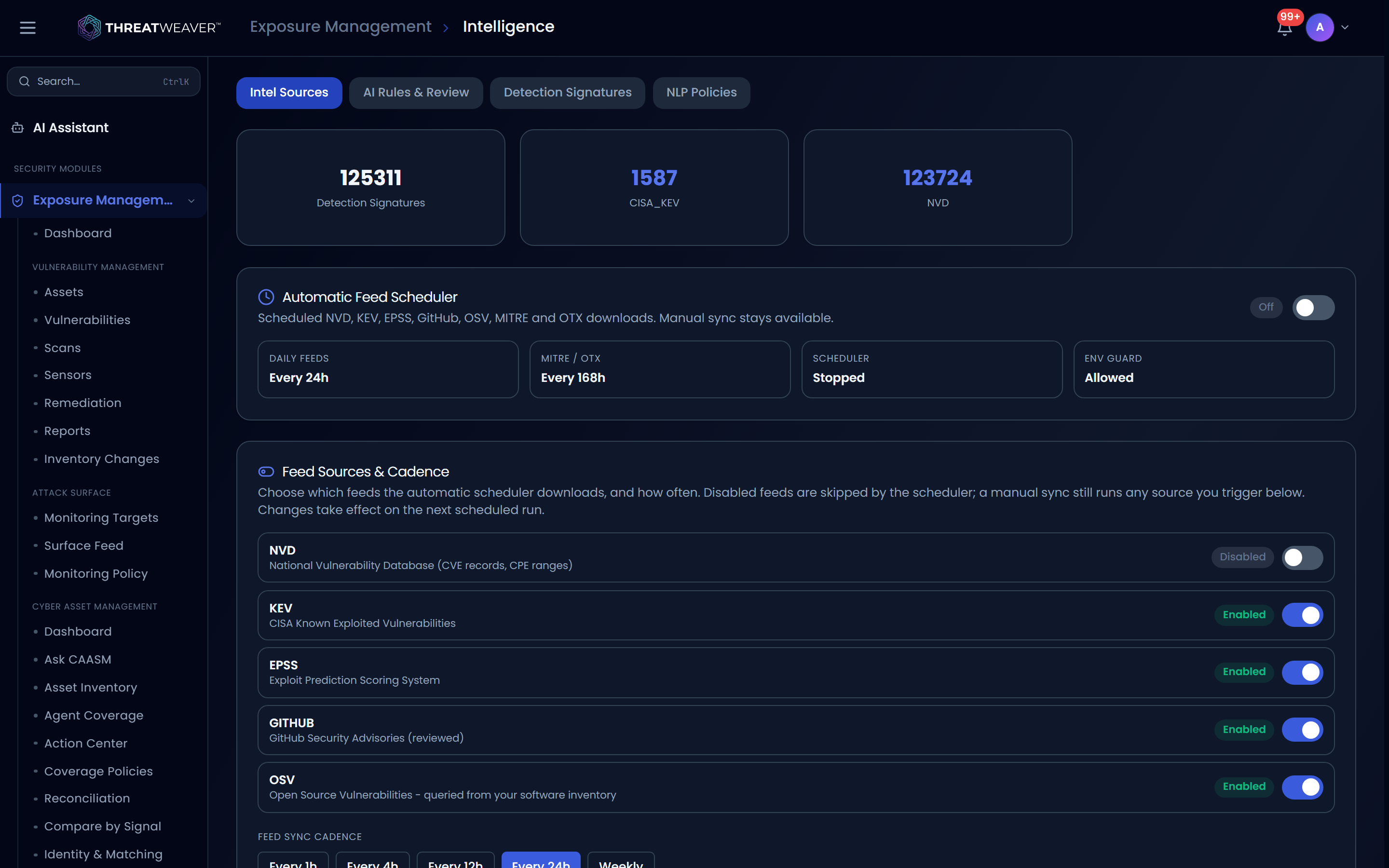
- Intel Sources: which feeds are enabled, their sync schedule, and manual sync controls.
- AI Rules & Review: the queue of AI-generated detection rules awaiting approval.
- Detection Signatures: a read-only summary of how many signatures each source has contributed.
- NLP Policies: security policies written as natural-language rules.
Intel Sources
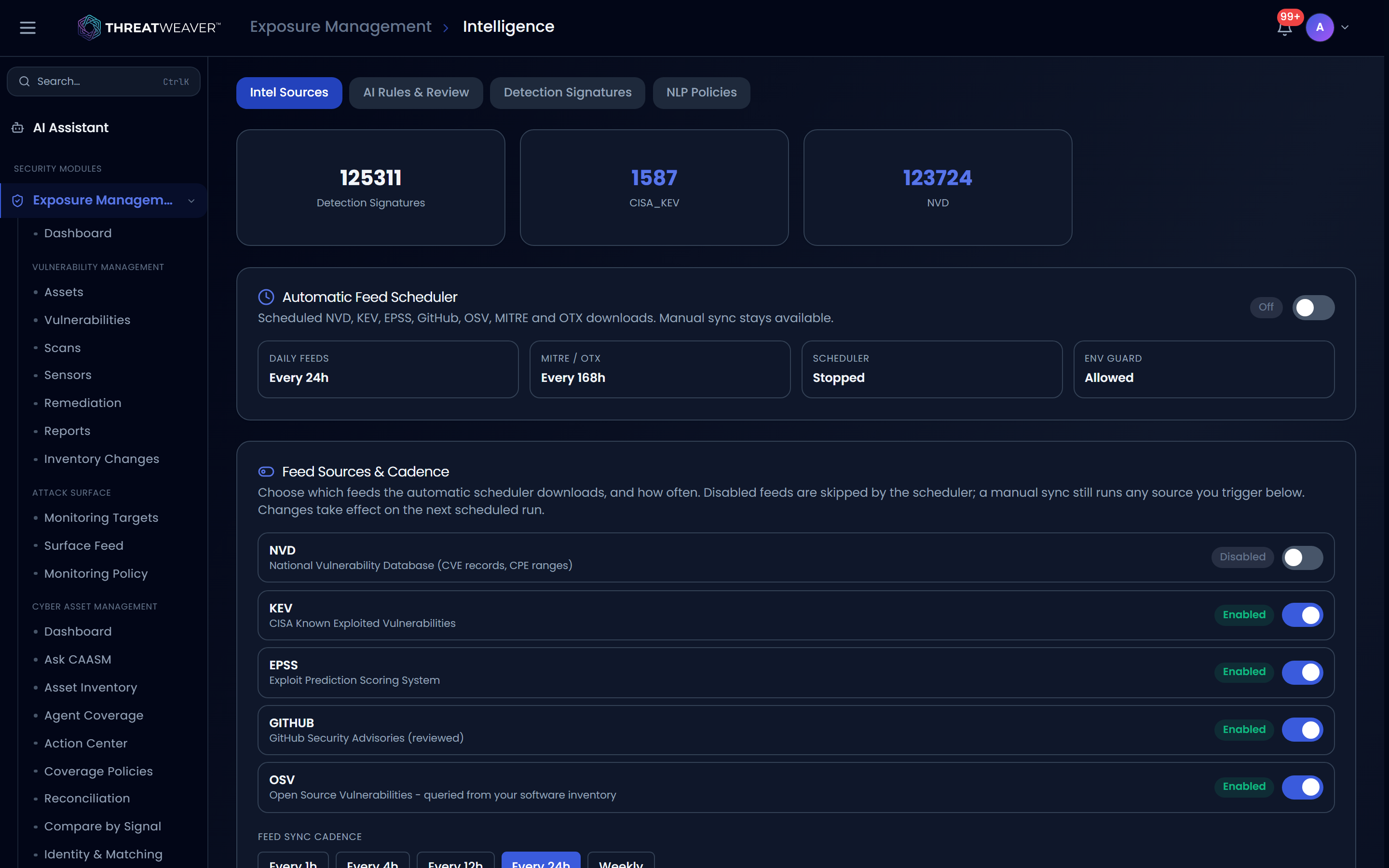
ThreatWeaver pulls from five intelligence feeds you can individually enable, schedule, and manually sync from this tab:
| Source | What it provides |
|---|---|
| NVD | The National Vulnerability Database, which provides CVE records and affected-product ranges. |
| KEV | CISA's Known Exploited Vulnerabilities catalog. |
| EPSS | The Exploit Prediction Scoring System. |
| GitHub | Reviewed GitHub Security Advisories. |
| OSV | Open Source Vulnerabilities, queried against your own software inventory. |
Two further feeds, MITRE and OTX, sync automatically on a fixed roughly-weekly cadence. They aren't part of the toggle list, cadence selector, or manual sync buttons below. A separate stat tile reports their schedule and whether they're currently running.
Automatic feed scheduler
| Control | What it does |
|---|---|
| Automatic sync toggle | Turns the scheduled feed downloads on or off. |
| Feed sync cadence (1h, 4h, 12h, 24h, or Weekly) | How often the daily feeds (NVD, KEV, EPSS, GitHub, OSV) refresh automatically. |
A row of summary tiles shows how often the daily feeds and the MITRE / OTX feeds each run, whether the scheduler is currently running, and whether automatic syncing is allowed at all for your workspace (an Env guard tile); if it isn't, a warning banner explains that the scheduler is disabled regardless of the toggle above.
Feed sources & cadence
Each source has its own row with an Enabled / Disabled toggle. A disabled feed is skipped by the automatic scheduler, but you can still sync it manually at any time.
A warning appears when all five feeds are turned off, since the scheduler then has nothing left to download.
Intelligence sync
| Control | What it does |
|---|---|
| Sync All | Triggers a manual sync of every source right now. |
| Per-source sync buttons | Syncs just that one source. |
A history table shows the last 20 sync runs, each with its source, status, how many records were fetched, how many were new or updated, and when it started and finished.
Source credentials
Two of the five sources support an optional API key that raises their request limits:
| Control | What it does |
|---|---|
| NVD API key | Raises how frequently ThreatWeaver can query NVD. |
| GitHub token | Authenticates GitHub Advisory pulls at a higher rate limit. |
Once saved, a key is shown only as its last few characters, never in full. Clear removes a saved key. If your workspace already has one of these keys set at the infrastructure level, that takes precedence and the field shows it as already configured.
AI Rules & Review
Detection rules the AI engine proposes from your threat-intelligence feeds, waiting for a human to approve or reject them before they take effect.
Summary tiles show the total number of AI rules, how many are pending review, how many are approved, and their average confidence score, plus a breakdown of how many rules fall into high, medium, or low confidence.
This tab actually has two rule lists. AI-Generated Detection Rules lists every rule and lets you Approve or Reject it immediately, with no reason prompt and no expandable detail. Below it, the AI Rule Review Queue lists only rules still pending, and is where the richer controls apply:
| Control | What it does |
|---|---|
| Approve | Accepts a pending rule. |
| Reject | Declines a pending rule. In the review queue, this asks for a reason first. |
| Rule name (click) | Expands the rule to show its description, its detection logic, the affected package, and who reviewed it if already decided. |
| Pagination | Moves through the review queue when it has more than 20 items. |
Detection Signatures
A read-only summary: total signature count, how many are approved versus still pending, average confidence, and a breakdown of how many signatures came from each intelligence source. There are no editing controls on this tab; use AI Rules & Review to approve or reject individual rules, or Intel Sources to change what feeds them.
NLP Policies
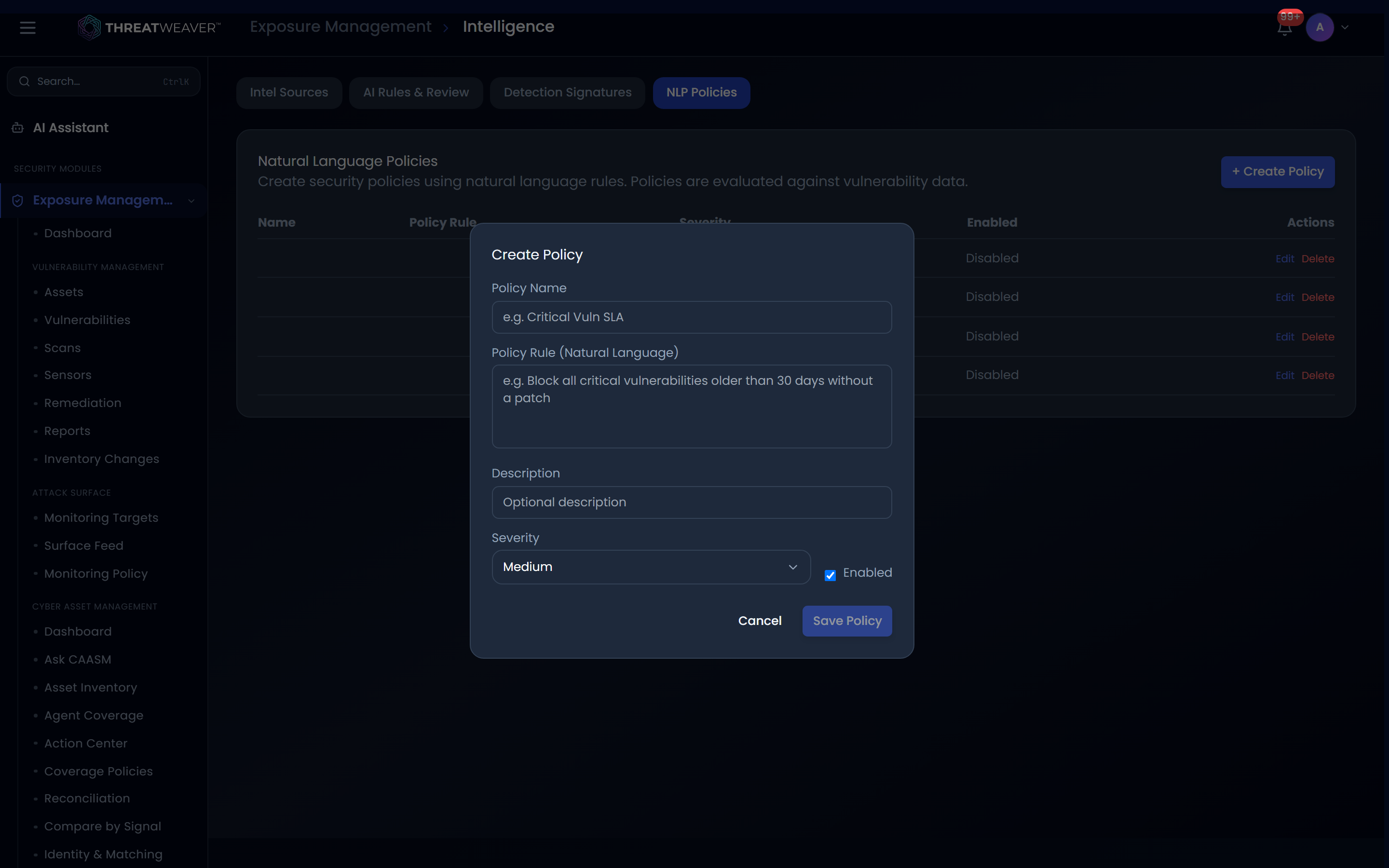
Write a security policy as a plain-language rule instead of building it field by field.
| Control | What it does |
|---|---|
| Create Policy | Opens a form for a policy Name, its Policy Rule written in plain language (for example, "Block all critical vulnerabilities older than 30 days without a patch"), an optional Description, a Severity, and whether it's Enabled. |
| Edit | Opens the same form pre-filled with the policy's current values. |
| Delete | Removes the policy, after a confirmation. |
Common workflows
Workflow: add an extra intelligence source and sync it
- Open Intel Sources and turn on the toggle for the source you want.
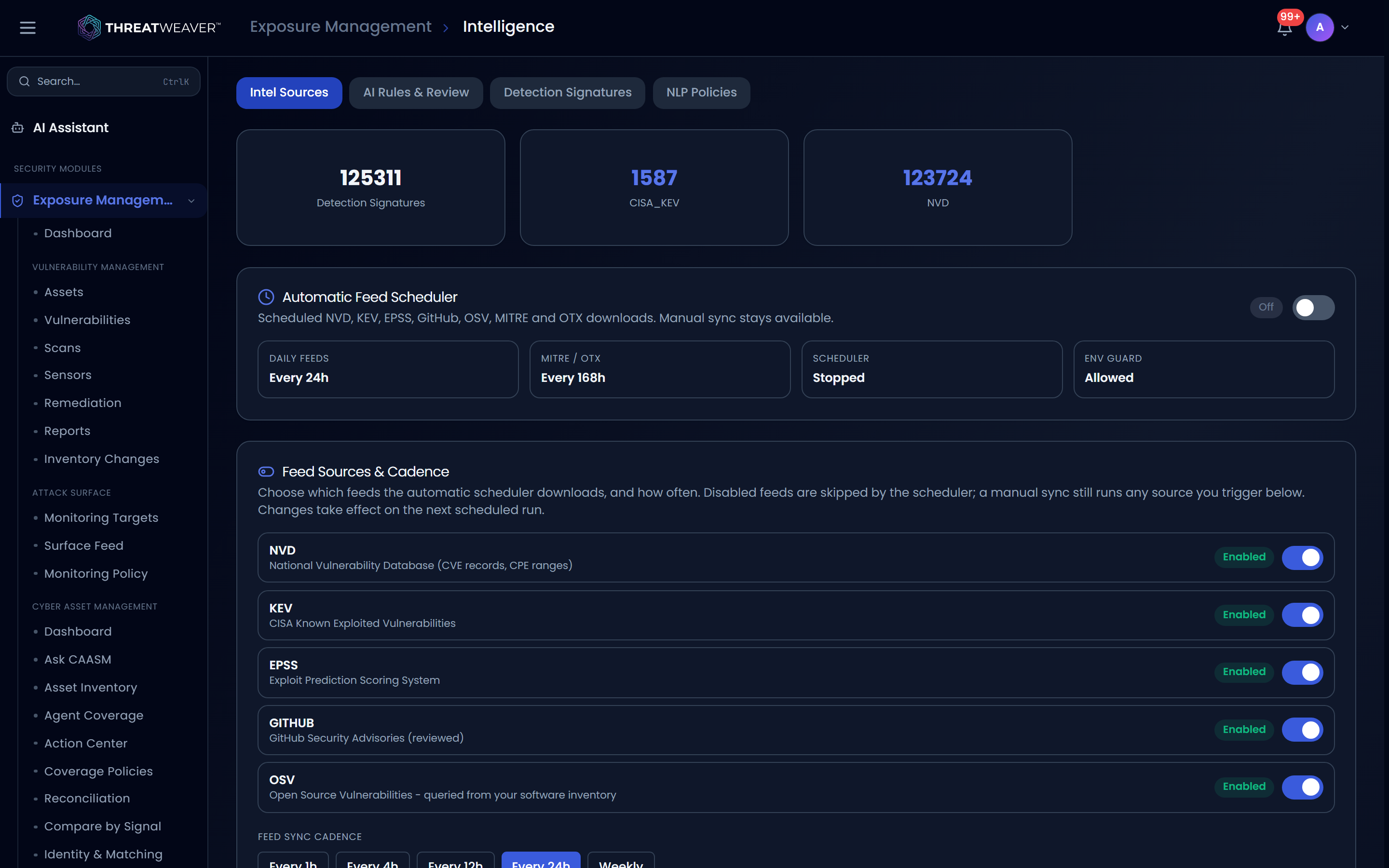
- If it's NVD or GitHub, consider adding an API key under Source Credentials to raise your request limit.
- Click that source's manual sync button (or Sync All) to pull data immediately rather than waiting for the next scheduled run.
- Check the sync history table to confirm it completed and see how many records came in.
Workflow: review a pending AI-generated rule
-
Open AI Rules & Review and find a rule with a pending status.
-
Click the rule's name to expand its description, detection logic, and affected package.
-
Click Approve to accept it, or Reject and enter a reason to decline it.
Workflow: write a plain-language policy
- Open NLP Policies and click Create Policy.
- Give it a Name and write the rule in plain language, for example "Flag any exploitable critical vulnerability on an internet-facing asset."
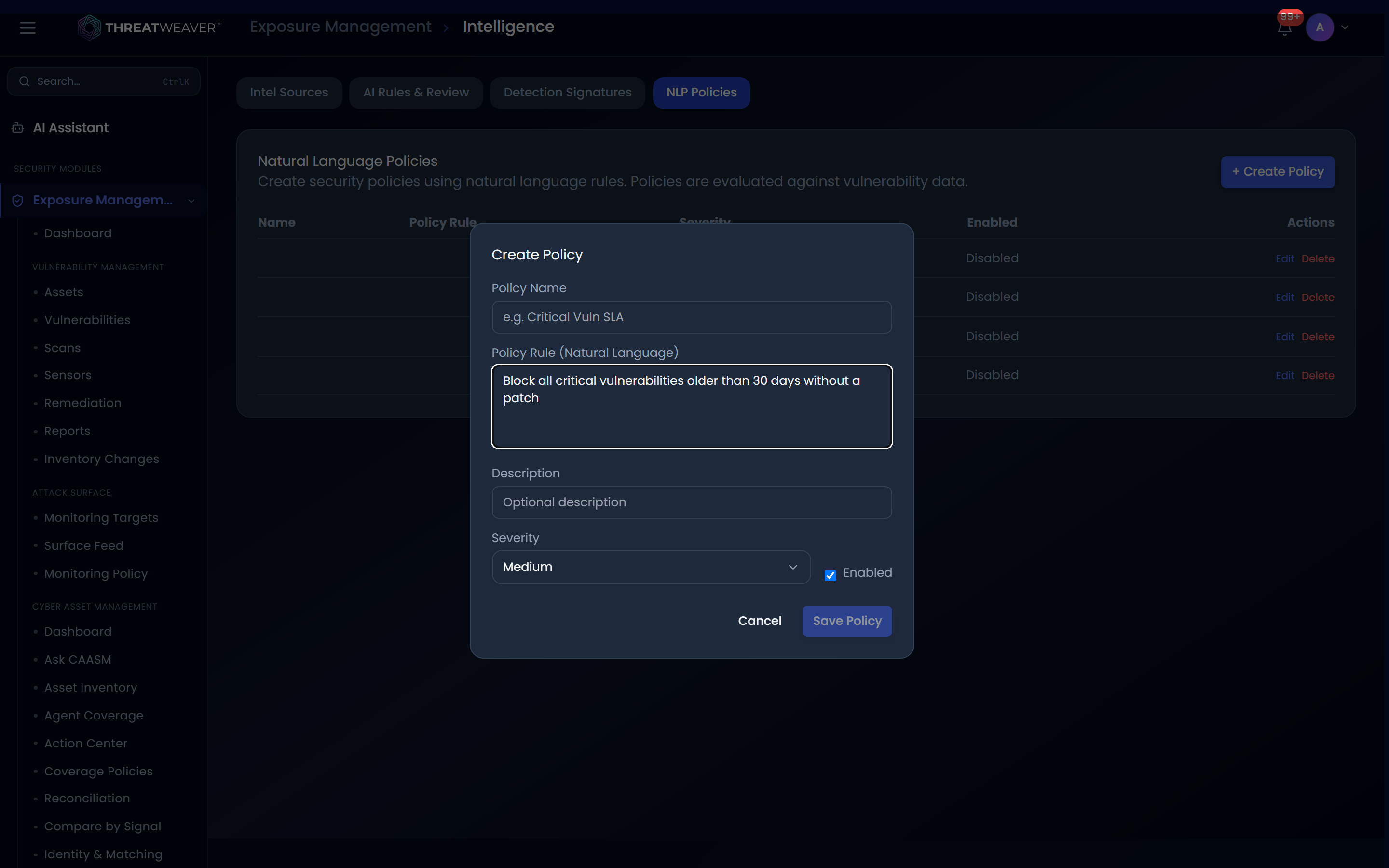
- Set a Severity, make sure Enabled is checked, and save.