Exposure Management
API Config & API Sync
API Config and API Sync are two related administrator screens. API Config is where you enter and test the credentials each scanner engine needs to talk to ThreatWeaver. API Sync is where you control how often ThreatWeaver checks that engine for new data, run a sync on demand, and verify that what ThreatWeaver has matches what the scanner reports.
Both screens are administrator-only. If you don't see them, your account doesn't have administrator access.
What it's for
- Connect an engine: save the API credentials ThreatWeaver needs to pull assets and vulnerabilities from a scanner.
- Keep data current: set an automatic sync schedule, or trigger a sync right now.
- Confirm your data is right: compare what ThreatWeaver has against what the scanner actually reports, and repair specific, reviewed differences.
- Keep dashboards in step with your data: rebuild the snapshots your dashboards and trends read from after a sync.
The screens in it
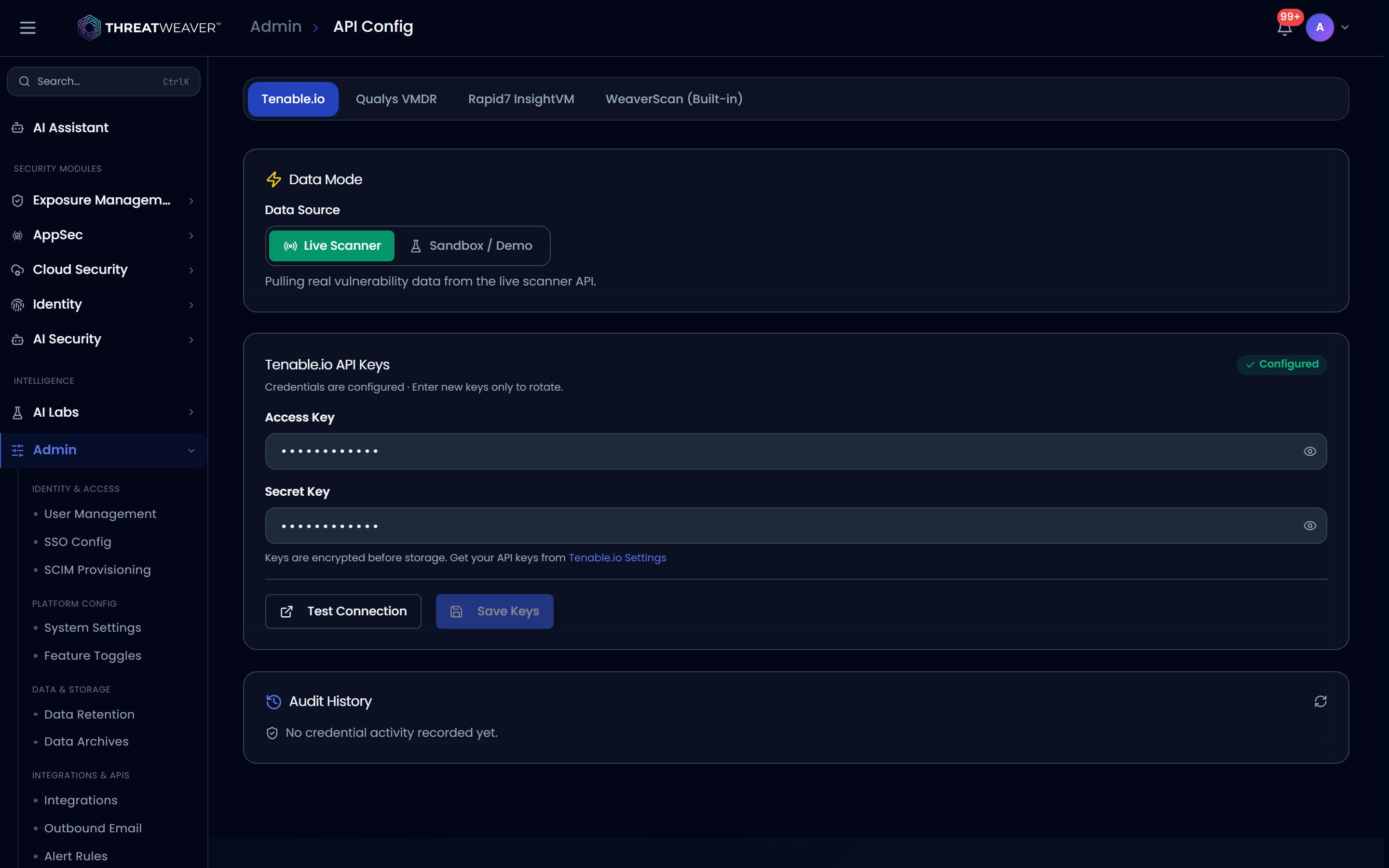
Both API Config and API Sync show the same row of engine tabs across the top: Tenable.io, Qualys VMDR, Rapid7 InsightVM, and WeaverScan (Built-in), so you work through each engine one at a time.
Tenable.io is the engine with a complete, working pipeline today: credentials, scheduled and manual sync, verification, and repair all work end to end. Qualys VMDR and Rapid7 InsightVM currently support entering and testing credentials; saving them and running a sync isn't available yet. WeaverScan is ThreatWeaver's built-in scanner and needs no credentials. See WeaverScan for managing its agents.
API Config
Tenable.io
| Control | What it does |
|---|---|
| Live Scanner / Sandbox | A switch between live data and sample data. Switching either way opens a confirmation dialog explaining the effect before it takes hold. Sandbox mode makes no calls to your scanner and shows example data instead. |
| Access Key / Secret Key | Paste your API key values here. A show/hide icon reveals what you've typed. |
| Test Connection | Checks the keys you've entered against Tenable.io and shows Connected or Failed. |
| Save Keys | Stores the credentials. The card shows Configured, plus who last updated the keys and when. Enter new values only when you want to rotate them. A saved key is shown masked, with its last few characters visible. |
| Audit History | The most recent credential and connection-test activity for this engine: who did what, whether a test succeeded, and when. |
While Sandbox / Demo mode is active, a banner reminds you the dashboard is showing sample data and that switching to Live Scanner (with valid keys) is what shows your real vulnerability data.
Qualys VMDR & Rapid7 InsightVM
Both engines have a credentials form (API URL plus Username/Password for Qualys, API URL plus API Key for Rapid7) and a working Test Connection button so you can confirm ThreatWeaver can reach your instance today.
Save Keys is disabled for Qualys and Rapid7 while their full sync pipelines are still being built. You can test a connection now; saving credentials for ongoing sync arrives in a later release.
WeaverScan (Built-in)
WeaverScan ships with ThreatWeaver and needs no external credentials; agents enroll and submit results directly. Manage WeaverScan agents from WeaverScan.
API Sync
Qualys & Rapid7
Scheduled and manual sync aren't wired up yet for these two engines. Save and test their credentials on the API Config tab in the meantime; the full sync pipeline arrives with a later release.
WeaverScan (Built-in)
WeaverScan doesn't run on a schedule the way external engines do; your assets and vulnerabilities update automatically as agent scans complete. Manage agents and enrollment from WeaverScan.
Tenable.io
This is the fully working sync engine, with four parts.
Automatic sync schedule
| Control | What it does |
|---|---|
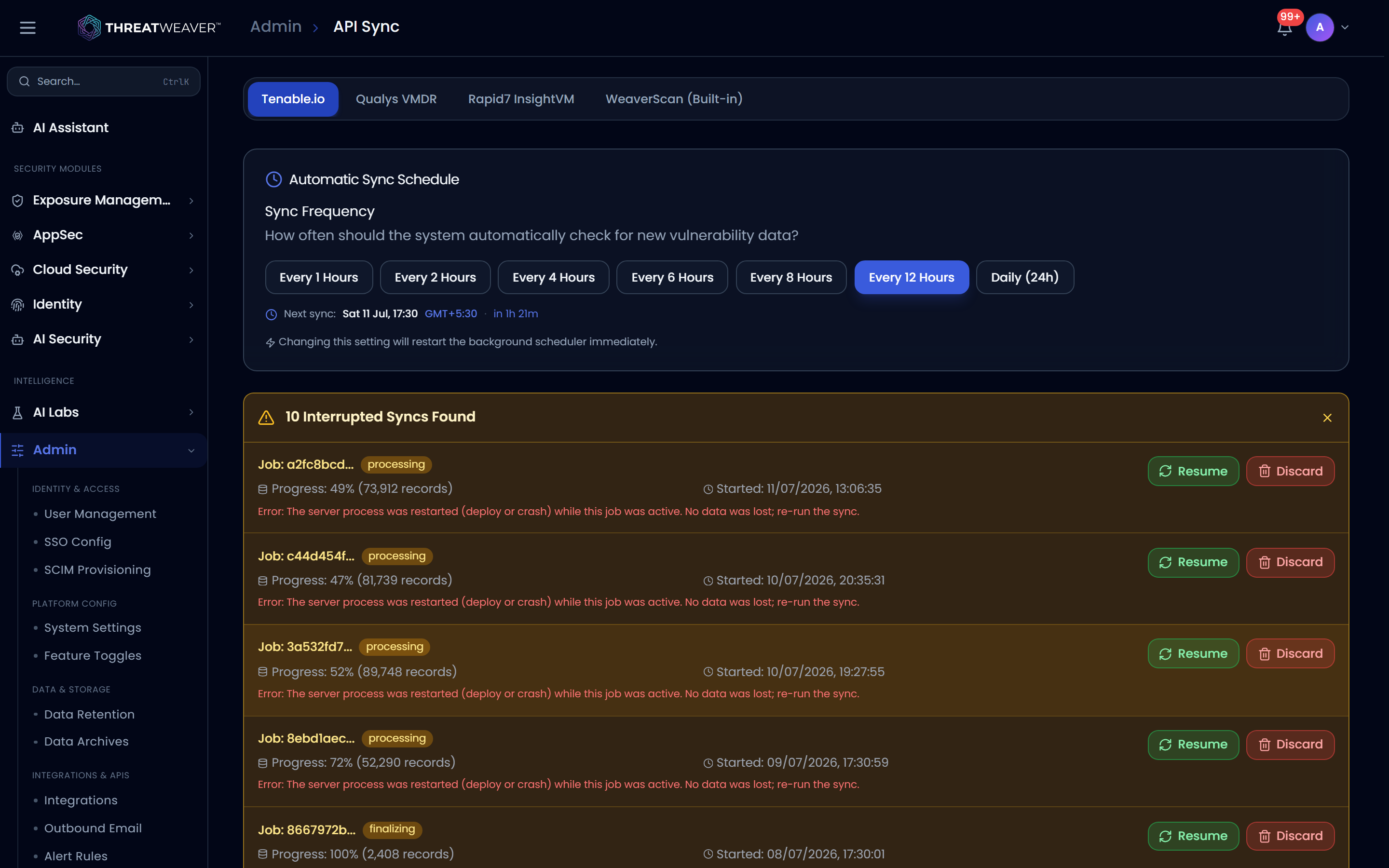
| Interval buttons (1, 2, 4, 6, 8, 12, or 24 hours) | Sets how often ThreatWeaver checks Tenable.io for new data. Applies immediately and restarts the schedule. |
The card shows exactly when the next sync will run, counting down live. If a previous sync was interrupted, a recovery banner appears below the schedule (and above the sync-status card further down) listing each interrupted job with its progress and error, and lets you Resume it from where it stopped or Discard it (after a confirmation): discarding keeps any partial data already imported but won't try to finish the job.
Sync status & manual sync
| Control | What it does |
|---|---|
| Sync scope | How much history a manual sync should cover: the recommended Smart Window, Last 90 Days, Last 1 Year, a Custom Date, or Include Full History. |
| Full Sync | Pulls both assets and vulnerabilities right away, using your chosen scope. |
| Sync Assets Only | Syncs assets only; runs immediately regardless of the scope selector. |
| Sync Vulnerabilities Only | Syncs vulnerabilities only, using your chosen scope. |
| Stop Sync | Appears while a sync is running, so you can cancel it (with a confirmation) partway through. |
While a sync runs, the card shows its live status, a time estimate, and a progress bar with the record count processed so far. When idle, it shows 100% · All systems synced.
Recalculate Dashboard Statistics
If dashboard numbers look out of date after a sync, this rebuilds the snapshots your dashboards and trends read from, without re-syncing your scanner.
| Control | What it does |
|---|---|
| Check Health | Refreshes the health readout below without changing anything. |
| Range | The date span to rebuild: 7, 30, or 90 days; 1 year; all time; or a custom range. |
| Force Update | Runs the rebuild even if ThreatWeaver would otherwise skip it (for example, because no sync has completed yet today). |
| Recalculate Stats | Starts the rebuild for the selected range. A progress readout tracks the phase and percentage while it runs, and you can Cancel it. |
Below the controls, a health readout shows whether your recent data is Healthy, needs attention, or is in Repair Needed state, broken down by category and by finding layer, with a note telling you which date range to recalculate if something needs fixing.
ThreatWeaver may block a recalculation with the message "Blocked: No complete sync today. Enable 'Force Update' to override." Turn on Force Update and try again.
Current-state verification
Compares what your scanner reports right now against what ThreatWeaver has stored, and records the evidence before anything is repaired.
| Control | What it does |
|---|---|
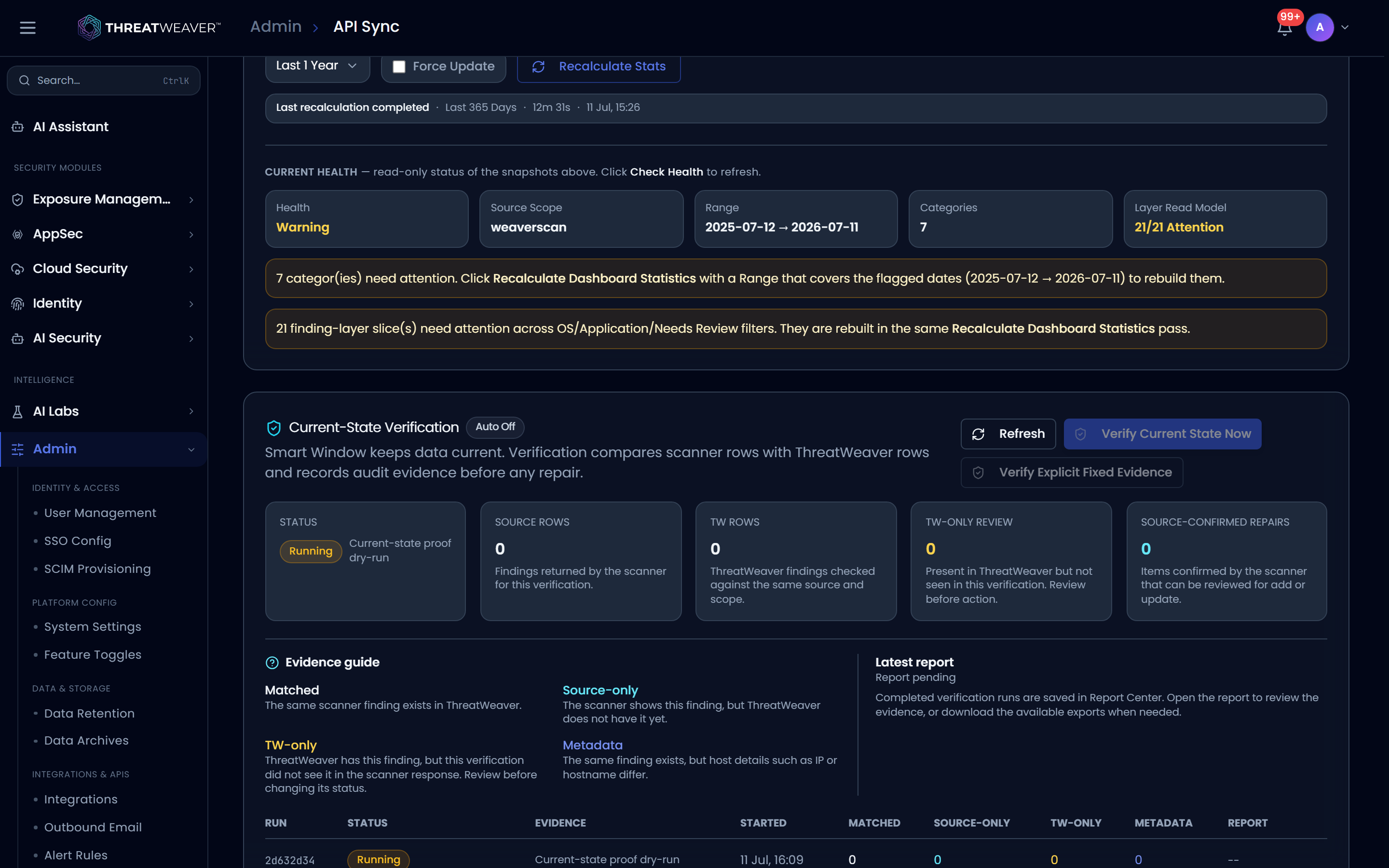
| Verify Current State Now | Compares the scanner's current open and reopened findings against ThreatWeaver's records. This only compares; it doesn't change any data. |
| Verify Explicit Fixed Evidence | Specifically asks the scanner to confirm which findings it considers fixed, rather than inferring a fix from a finding simply being absent. |
| Open Report Center / JSON / CSV | View or download the completed run's evidence. |
Once a comparison finishes, a summary shows how many findings matched, appeared only in the source scanner, appeared only in ThreatWeaver (flagged for review), or matched with differing metadata such as IP or hostname. If administrators on your team have the ability to apply repairs, up to three review-and-apply actions can appear:
| Control | What it does |
|---|---|
| Apply Reviewed | Applies only the rows the scanner explicitly confirmed in the run. It can reopen a finding ThreatWeaver had marked fixed if the scanner still reports it, but never closes, fixes, archives, or stales anything on its own. |
| Apply Fixed Evidence | Marks findings fixed only where the scanner explicitly confirmed the fix, never inferred from a missing row. |
| Mark Stale Candidates | Flags ThreatWeaver-only findings as stale candidates for review, when your scanner is set up so that a missing row is meaningful. It only flags for review; it doesn't close or change anything else. |
Each of these opens a confirmation dialog that states exactly what it will and won't do before anything happens.
If a new sync happens after a verification run finishes, that run is marked stale and its apply actions are blocked until you verify again. A run that compared an unusually large number of records is also blocked from being applied, with a message asking you to verify a narrower scope first.
A history table below lists every verification run with its status, evidence counts, and a link to its full report.
Sync & jobs history
A combined history of every background job related to this engine (syncs, recalculations, and repairs), not just sync runs.
| Control | What it does |
|---|---|
| Search | Filters the loaded runs by title, description, or who triggered them. |
| Status filter | All / Completed / Failed / Running / Cancelled. |
| Trigger filter | All / Manual / Scheduled. |
| Export CSV | Downloads the currently visible history. |
| Row → View details | Expands a run to show its metadata and a step-by-step timeline. |
| Row → Cancel run | For a run that's still in progress, requests that it stop at its next safe checkpoint (with a confirmation). Work already done is kept. |
| Load More | Loads older runs. |
Each row shows the job's type, when it started, who or what triggered it, its status, how long it took, and its record counts, with a Result badge calling out whether anything failed.
Common workflows
Workflow: connect a new scanner engine
- On API Config, select the engine's tab (for example Tenable.io).
- Paste your API credentials into the fields shown for that engine.
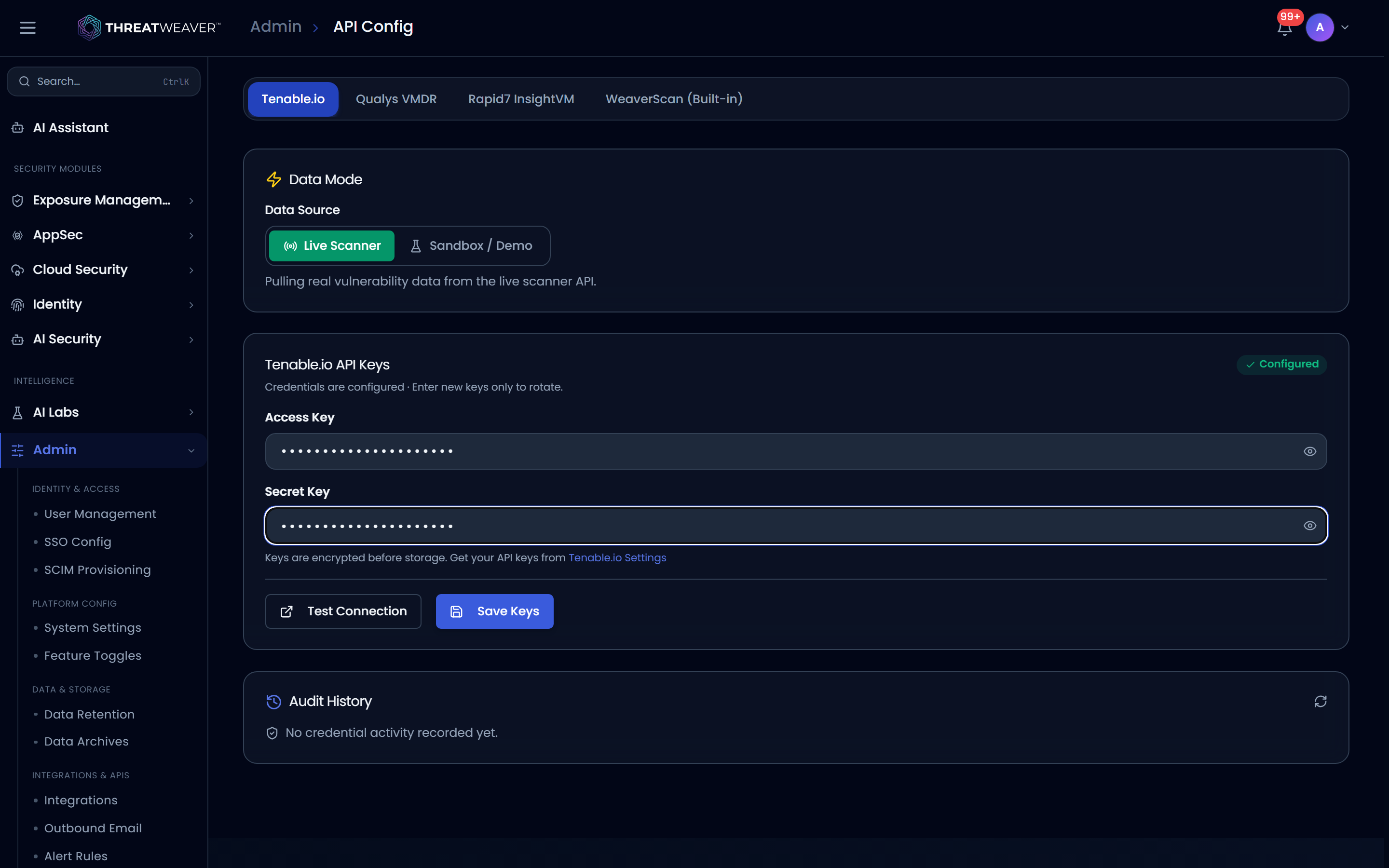
- Click Test Connection to confirm ThreatWeaver can reach it.
- For Tenable.io, click Save Keys. The card updates to Configured. Then activate the engine on Data sources & connectivity so it starts feeding your Vulnerability Management views.
Workflow: sync now and confirm your data matches
- On API Sync, choose a sync scope that fits what you need, then click Full Sync and watch the status card until it returns to Idle.
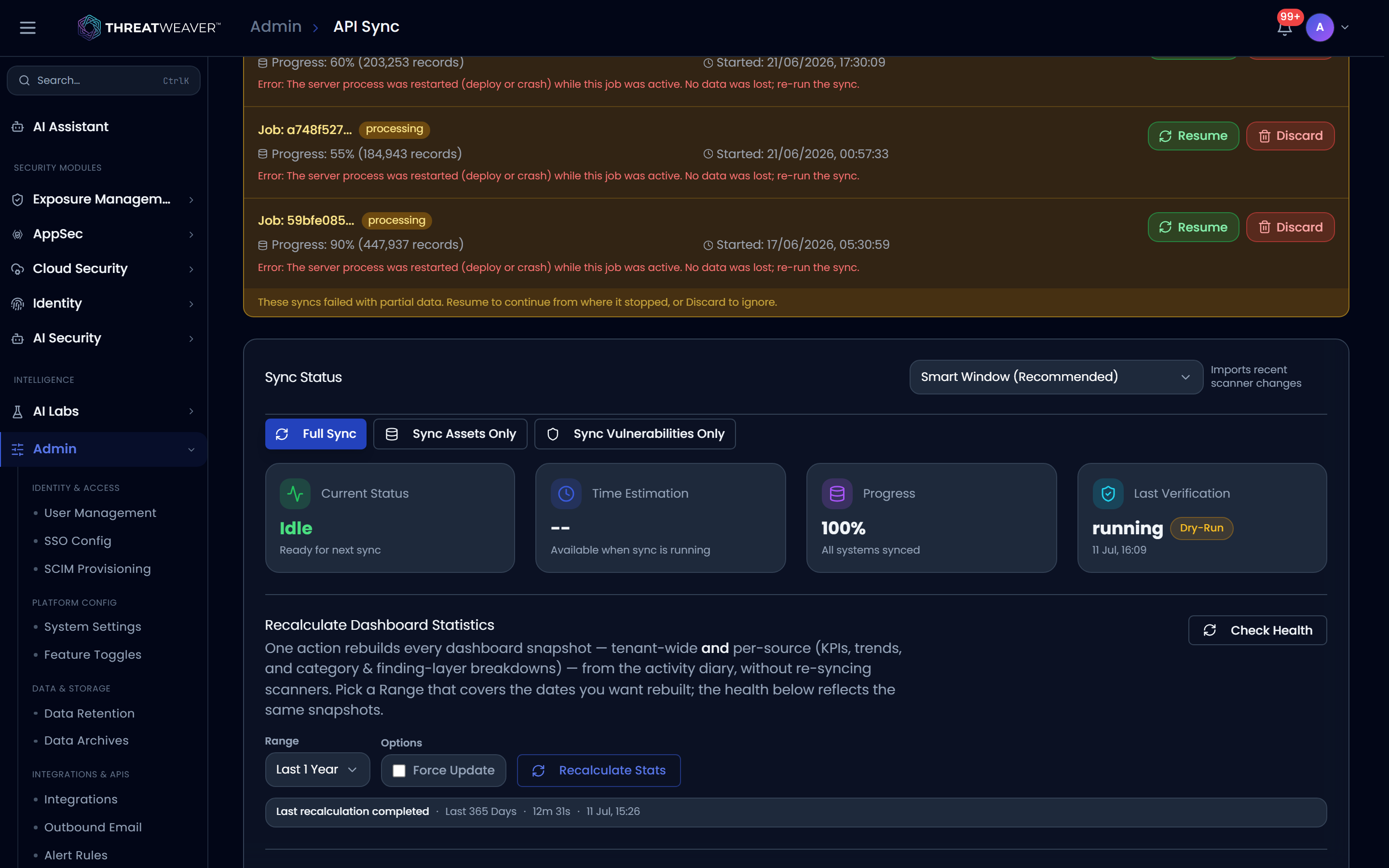
- Click Verify Current State Now to compare what ThreatWeaver stored against what the scanner currently reports.
- Review the summary: matched, source-only, ThreatWeaver-only, and metadata differences.
- If you have the ability to apply repairs and something needs fixing, click Apply Reviewed (or the more specific action that fits), confirm the dialog, and check the run's status in Sync & Jobs History.
Workflow: fix stale dashboard numbers
- On API Sync, check the Current health readout under Recalculate Dashboard Statistics.
- Set Range to cover the dates flagged as needing attention.
- Click Recalculate Stats and watch the progress readout. If it's blocked, turn on Force Update and try again.