Cyber Asset Management
Ask CAASM
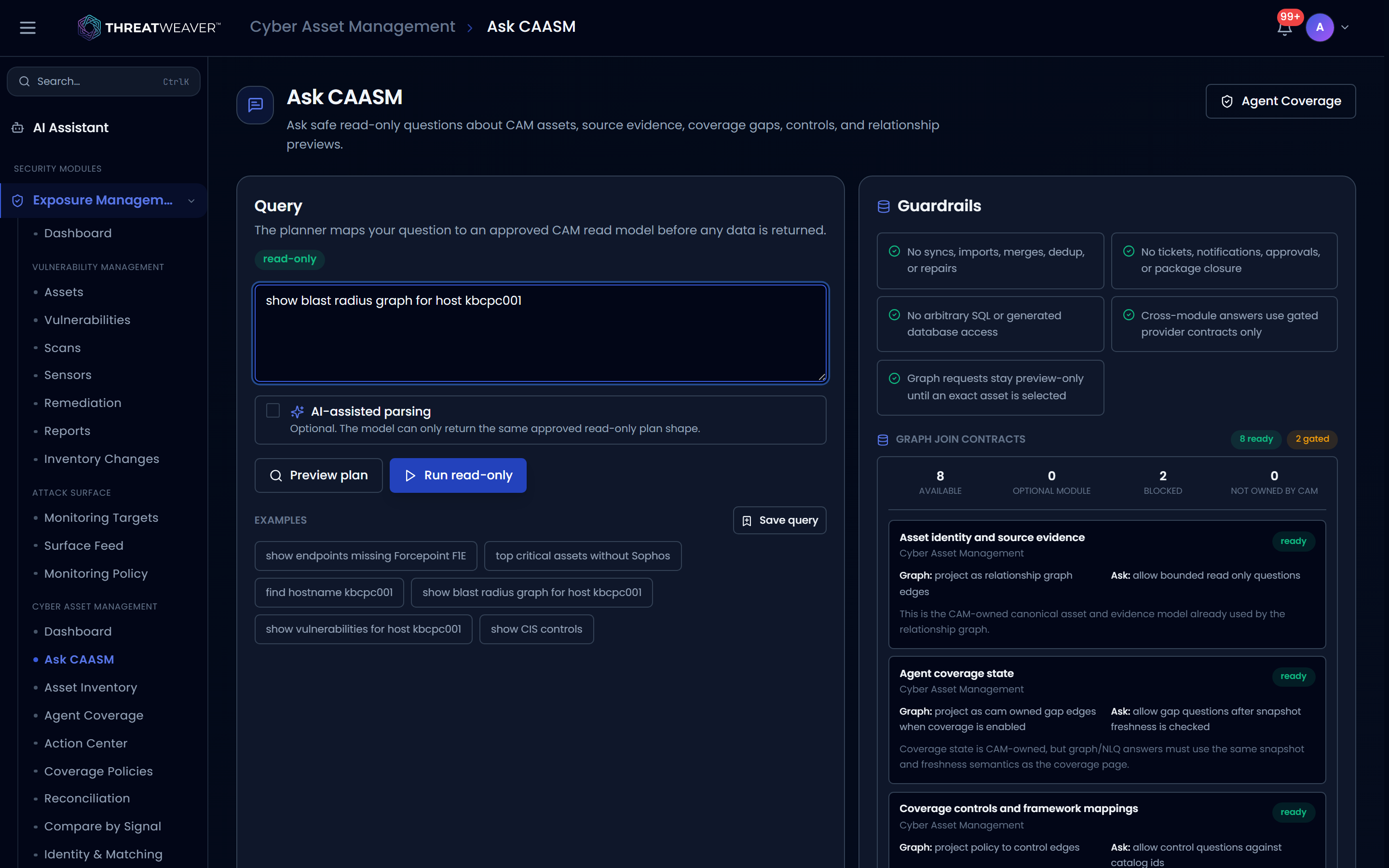
Ask CAASM lets you ask a question about your assets in plain language (missing agents, coverage gaps, a specific host, security controls, or how one asset relates to others) instead of building a filtered search by hand. Every question is answered read-only: nothing is imported, changed, or removed, and you can see the plan for how a question will be answered before any data comes back.
What it's for
- Skip building a filter by hand: type what you're looking for (for example, endpoints missing a particular agent) instead of finding the right columns and filters yourself.
- See the plan before the data: preview exactly which read-only lookup a question maps to, with its filters and safety checks, before running it.
- Reuse good questions: save the ones you rely on, and revisit anything you've previewed or run recently.
The screens in it
Ask CAASM is a single screen: a query box and its guardrails on top, and the plan and result of your question below.
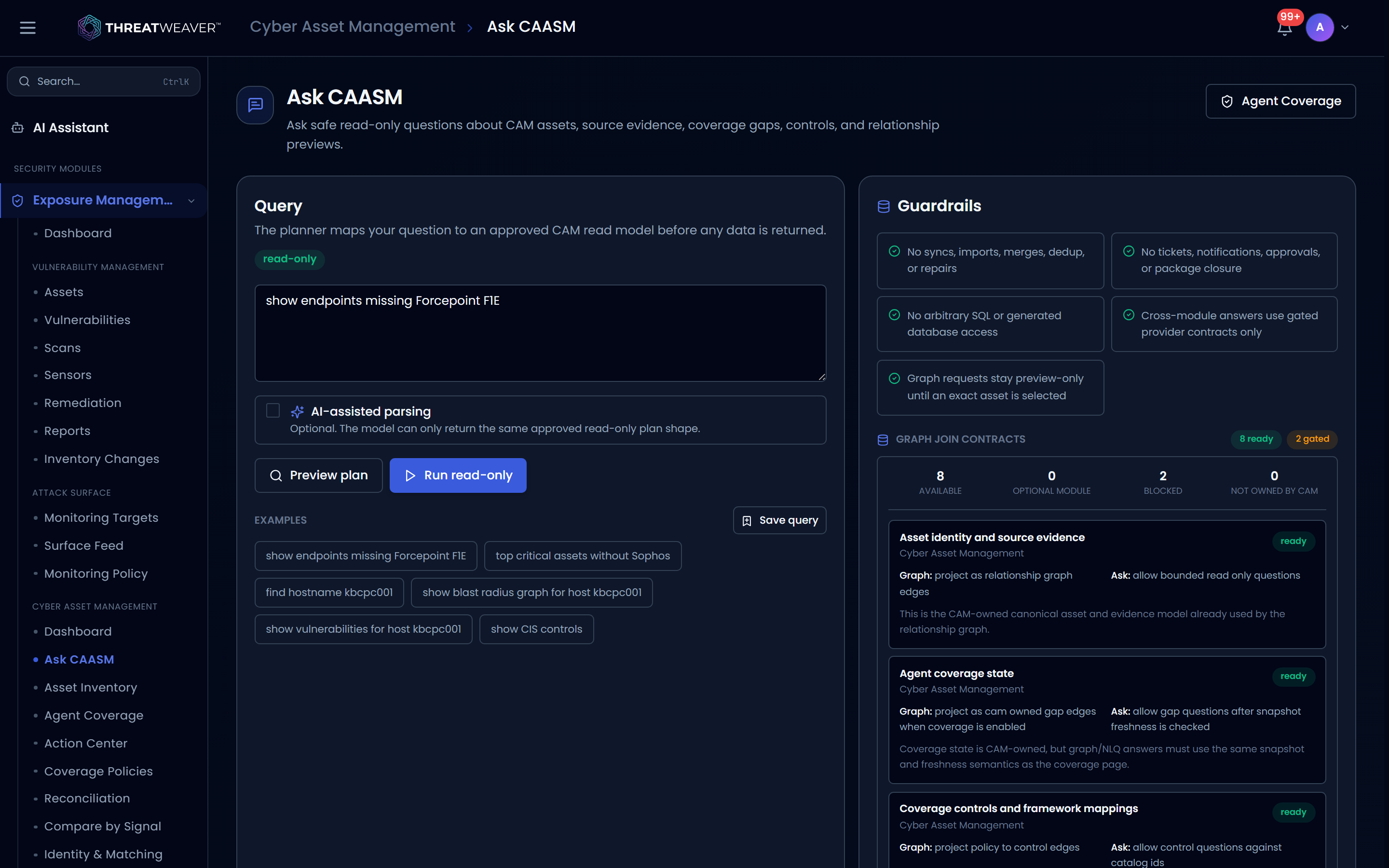
Every control explained
Asking a question
| Control | What it does |
|---|---|
| Query box | Type your question: for example, which endpoints are missing a particular agent, your top critical assets, a host by name, or the security controls you have defined. |
| AI-assisted parsing | An optional checkbox. When off, your question is matched by a fixed, deterministic parser. When on, the wording is interpreted more flexibly by an AI model, but the model can only ever return the same approved, read-only plan shape, so turning it on doesn't loosen what Ask CAASM is allowed to do. |
| Preview plan | Works out how your question would be answered (the intent, filters, and safety checks) without returning any data. Needs at least three characters in the query box. |
| Run read-only | Runs the planned lookup and shows the results. Needs at least three characters in the query box. |
| Examples | A row of one-click sample questions (for example "show endpoints missing Forcepoint F1E" or "show CIS controls") that fill the query box for you. |
| Save query | Saves your current question so you can reuse it later. Needs at least three characters in the query box. |
| Agent Coverage | A link in the page header that takes you to the Agent Coverage screen. See Coverage and agents. |
Guardrails
A Guardrails panel spells out, in plain terms, what Ask CAASM will never do, regardless of how a question is phrased:
- No syncs, imports, merges, deduplication, or repairs.
- No tickets, notifications, approvals, or action-package changes.
- No arbitrary database access or free-form queries.
- Cross-module answers (such as related vulnerabilities or threats) only come through approved, gated connections to those modules.
- Graph and relationship requests stay preview-only until you ask about one exact asset.
Graph join contracts
Below the guardrails, a Graph join contracts panel reports, family by family (for example asset relationships, evidence links, or cross-module context), whether that kind of join is ready to answer through Ask CAASM right now. Each entry shows a status badge:
| Status | What it means |
|---|---|
| Ready | The join works today, for both the relationship graph and Ask CAASM questions. |
| Module gated | Available only when the module that owns that data is licensed and enabled for your workspace. |
| Contract needed | Not available yet: it's waiting on a stable data connection from the owning module. |
| Deep-link only | Answered by linking out to the owning module's screen rather than showing the data inline. |
A summary count at the top shows how many families are ready versus gated, and each entry explains its reason in a sentence, plus any features that still need to be turned on before it becomes available.
Saved queries
Questions you save appear in a Saved queries list. Click one to load it back into the query box, or remove it with the trash icon. A badge shows whether your saved questions are kept in a shared library for your whole workspace, or (if that isn't available) saved only in your own browser as a fallback.
Recent runs
Every question you preview or run is added to Recent runs, showing the question text, its status (planned, ran, or failed), and the detected intent. Click an entry to load that question again, or click Clear to empty the list. Like saved queries, history is either shared with your workspace or kept only in your browser, shown by the same badge.
The Plan panel
After you preview or run a question, the Plan panel shows how it was understood:
| Field | What it shows |
|---|---|
| Parser badge | Whether the question was matched by the deterministic parser or interpreted with AI-assisted parsing, plus a note if it fell back from AI to the deterministic parser. |
| Intent | The kind of question Ask CAASM understood this to be (for example, a coverage-gap search or a relationship lookup). |
| Confidence | How confident the match is, as a percentage. |
| Method / Route | The read-only lookup the question maps to, or not executable if it doesn't map to one. |
| Explanation | A sentence describing why the question was matched this way. |
| Filters | The filters extracted from your question, such as required agents, a search term, an asset name, a graph focus, or the cross-module context families to include. |
| Guardrails | A restated summary of the safety limits in force for this specific question (read-only, no arbitrary queries, no writes, and the row limit applied). |
| Warnings | Any caveats about the match, shown only when Ask CAASM has one. |
| Unsupported reason | If the question can't be answered at all, an explanation of why. |
Before you've previewed or run anything, this panel shows an empty state instead.
If a preview or run fails, the plan and result area shows an "Ask CAASM could not run" card with the error instead. Click Retry to try the same question again.
The Result panel
What appears here depends on the kind of question you asked:
- Not executed: you clicked Preview plan, or the question is plan-only; no data was returned, and a short reason explains why.
- Asset search: a total count and a table of matching assets: hostname, full domain name (FQDN), IP address, operating system, and how many sources reported each one.
- Coverage-gap questions (missing agents, or gaps ranked by risk): total, required agents, and expected-asset counts, then a table listing each affected asset with its missing agents, installed agents, sources, and (for risk-ranked questions) a risk-level badge.
- Relationship graph: node, edge, source-evidence, and related-asset counts; a relationship map centered on the asset you asked about, with up to six related nodes; lists of the underlying graph nodes and edges; and, if the graph was cut down to stay a manageable size, a note that it's truncated.
- Cross-module context: for each family (vulnerabilities, threat context, and attack paths connected to the asset), a count, the highest severity found, its availability status, a few example items, and a deep link into the module that owns that data. A family you aren't licensed or permitted to see explains why instead of showing data.
- Control catalog: counts of controls, frameworks, and metrics; the frameworks represented; and cards for individual controls with their objective and the frameworks they map to. Only the first several controls are shown, with a note of how many more exist.
Asset-search and coverage-gap results return at most 25 rows per question, and the control catalog is shown a handful at a time with a note of how many more exist. The relationship graph's node and edge lists are capped the same way but without an explicit remaining-count note. Ask CAASM is built for quick, targeted questions. For a complete list across your whole inventory, use Asset inventory or Coverage and agents instead.
Common workflows
Workflow: preview, then run, a coverage question
- Type a question, or click one of the Examples: for example "show endpoints missing Forcepoint F1E".
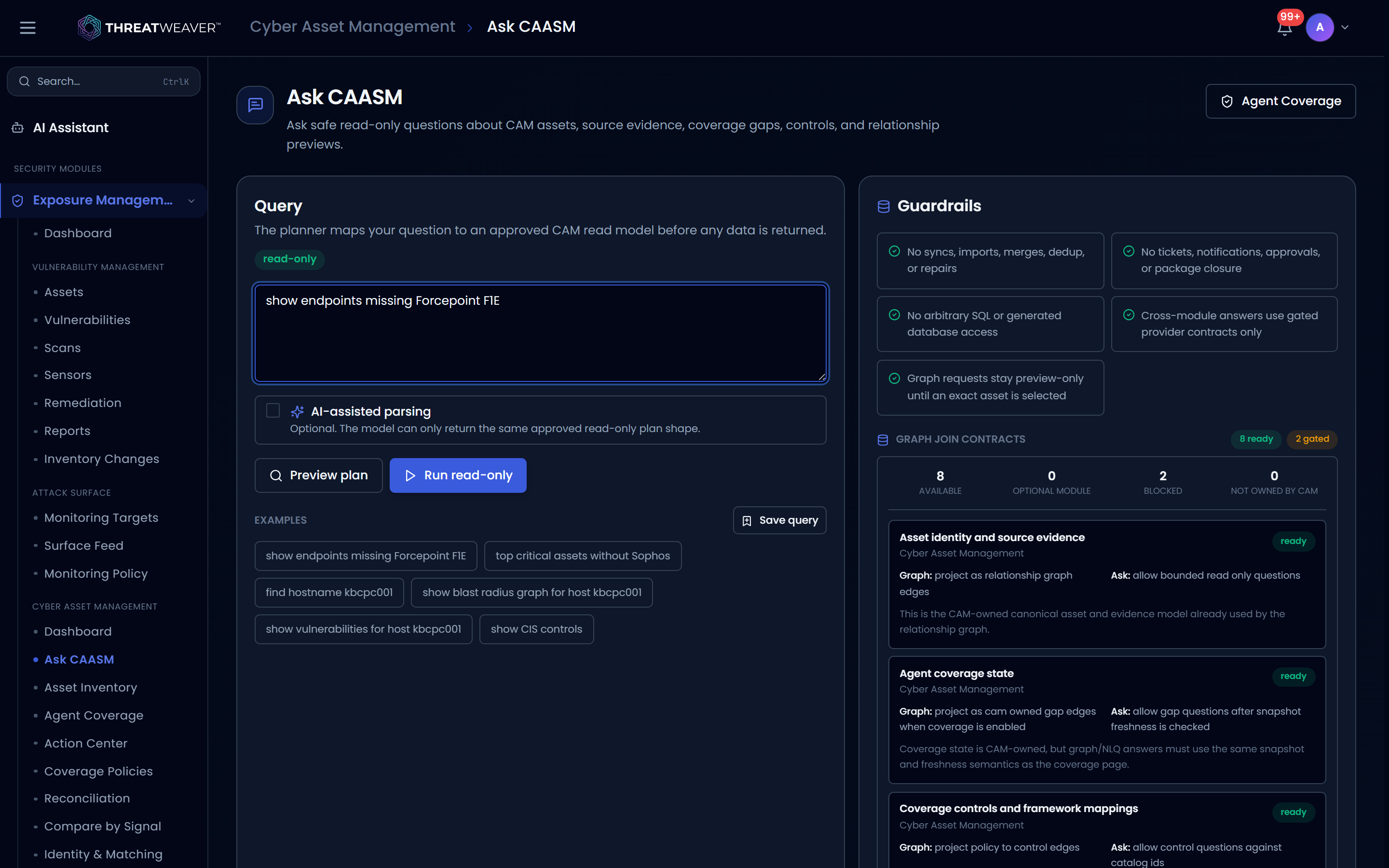
- Click Preview plan. Review the Plan panel to confirm the detected intent, filters, and guardrails look right before any data is returned.
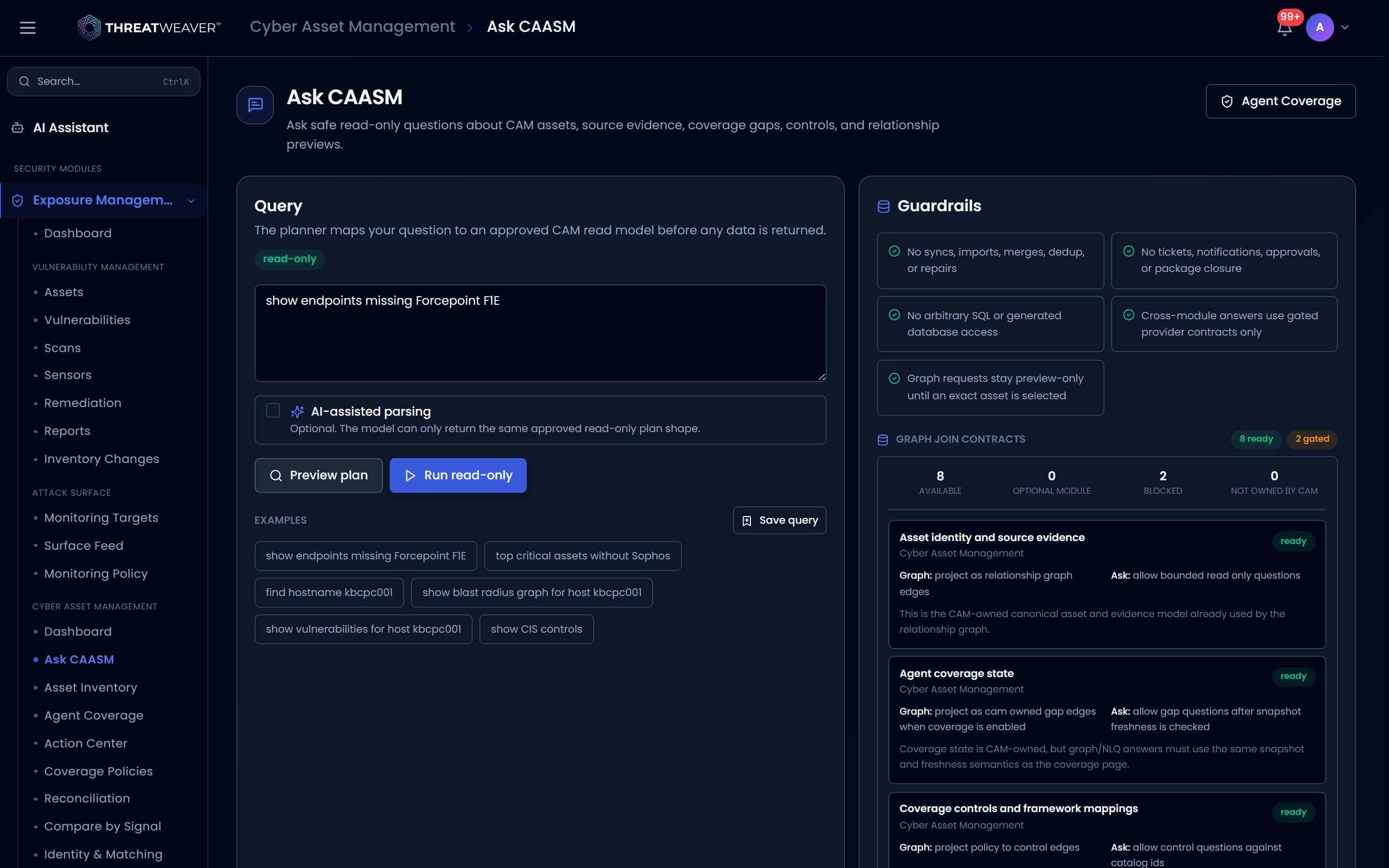
- Click Run read-only. The Result panel fills in with the matching assets and their missing agents.
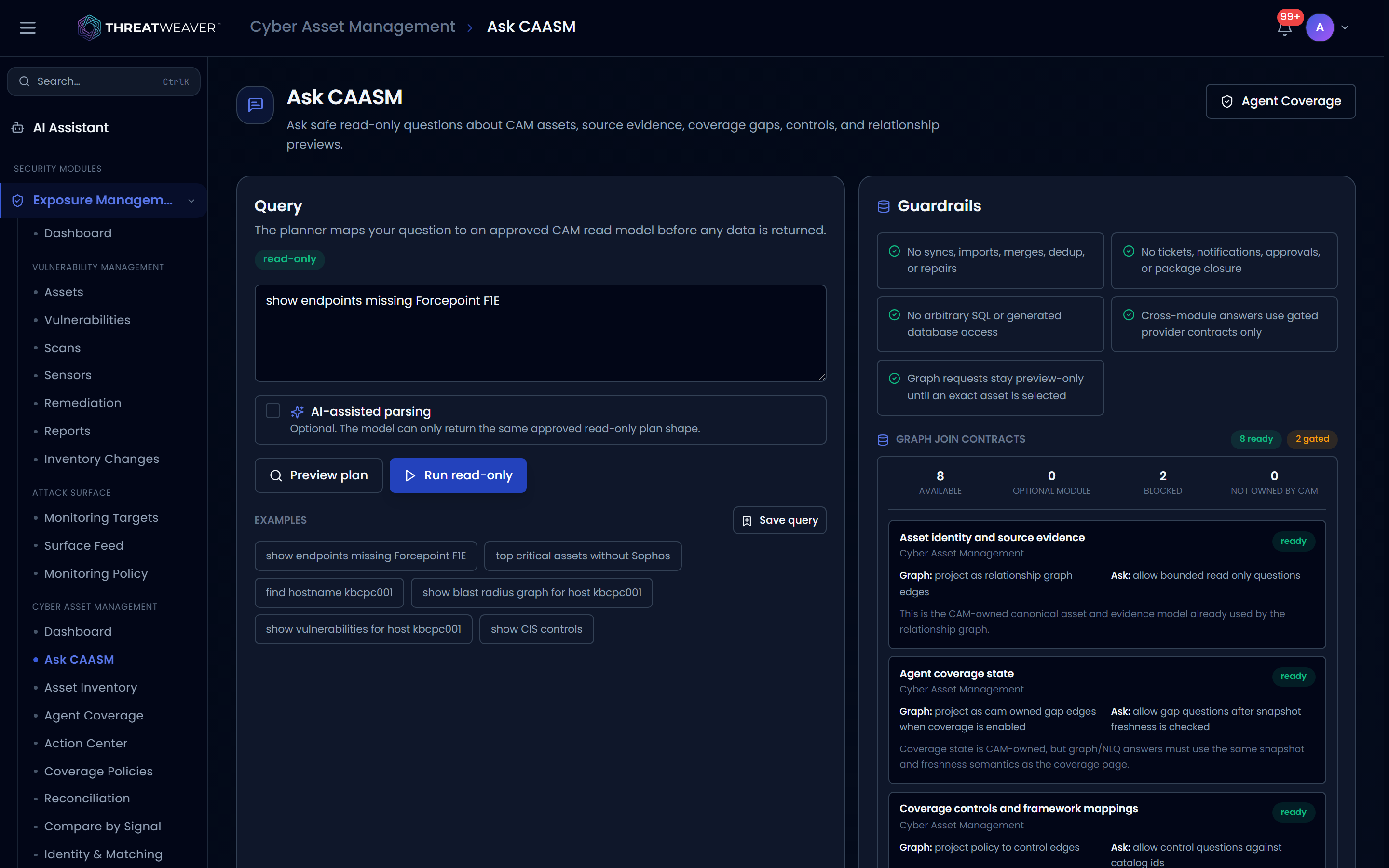
- If you'll want this question again, click Save query.
Workflow: look up one asset's relationships
- Ask about a specific host by name: for example "show blast radius graph for host kbcpc001".
-
Click Run read-only. Because the question names one exact asset, the relationship graph runs instead of staying preview-only.
-
Review the relationship map, the graph nodes and edges lists, and (if present) the cross-module context cards for a deep link into Vulnerabilities, Threat Radar, or Scanner.