AI Labs
Generators and chat
Six of the nine AI Labs tools turn a vulnerability into a piece of drafted work: a fix plan, a ticket, a summary, a root-cause writeup, an exception recommendation, or an open-ended chat with an AI advisor. They all live in the same AI Labs tab in Exposure Management and share a common shape, so this page covers all six together.
What it's for
- Draft instead of writing from scratch: pick a real vulnerability (or describe one yourself) and get a ready-to-use fix plan, ticket, summary, root-cause writeup, or exception recommendation.
- Ask instead of drafting: for open-ended questions, use AI Chat rather than one of the structured generators.
- Review before you use it: every generator produces a draft in a result panel for you to read and copy; nothing is sent to your issue tracker, saved, or acted on automatically.
The screens in it
Open AI Labs in the left navigation, or the AI Labs tab in Exposure Management (a sibling of Remediation, not nested inside it). A row of tabs runs across the top; these six make up the left side of that row:
- Fix Plan Generator
- Ticket Writer
- Executive Summary
- Root Cause Analyzer
- Exception Assistant
- AI Chat
Administrators can turn individual tools on or off, so you may not see all six. See Admin.
Every control explained
Common controls
Fix Plan Generator, Ticket Writer, Root Cause Analyzer, and Exception Assistant all share the same input shape:
| Control | What it does |
|---|---|
| Search Database / Manual Input toggle | Choose whether to pick an existing vulnerability from your data (Search Database) or describe one yourself (Manual Input). |
| Vulnerability picker | In Search mode, find and select the vulnerability (or, for Ticket Writer, up to ten vulnerabilities) to work on. |
| Detail fields | In Manual mode, fill in what you know. Fields marked with an asterisk (*) are required; the rest sharpen the result. |
| Generate button | Produces the result. A progress placeholder appears while it works. |
| Result panel | Shows the generated output, formatted and ready to copy. |
Fix Plan Generator
Generates a step-by-step remediation plan with rollback guidance.
- Search mode: pick one vulnerability with the vulnerability picker.
- Manual mode: fill in Vulnerability Description* (required), plus optional CVE ID, Severity (Critical, High, Medium, or Low), and Affected System.
- Click Generate Fix Plan to produce the plan.
Ticket Writer
Drafts a remediation ticket for your issue tracker.
- Search mode: select up to ten vulnerabilities with the vulnerability picker and set a Priority (Critical, High, Medium, or Low). Clicking Generate produces one ticket per selected vulnerability, each shown with its severity and host.
- Manual mode: fill in Vulnerability Summary* (required), plus Severity, Priority, and Affected Systems. Click Generate Ticket to produce a single ticket.
Executive Summary
Writes a board-ready written summary of your security status.
| Control | What it does |
|---|---|
| Auto-Fill | Populates Context / Scope and Key Metrics with real numbers pulled from your environment: total scored vulnerabilities, average risk score, how many are on the Known Exploited Vulnerabilities (KEV) list, how many are patchable, a severity breakdown, and your top critical vulnerabilities. |
| Context / Scope* | The situation to summarize (required). Write your own, or use Auto-Fill as a starting point. |
| Key Metrics | A short, comma-separated list of numbers to call out. |
| Target Audience | C-suite, Technical, or Board; each shapes the tone and depth of the summary differently. |
| Generate Summary | Produces the summary. |
Root Cause Analyzer
Explains why a vulnerability exists and where it comes from.
- Search mode: pick a vulnerability with the vulnerability picker, and optionally add Environment Context (for example, "Production DMZ" or "Cloud VPC") to sharpen the analysis.
- Manual mode: fill in Vulnerability Description* (required), plus optional CVE ID, Affected System, and Environment.
- Click Analyze Root Cause to produce the analysis.
Exception Assistant
Recommends whether (and how) to grant an exception for a vulnerability you don't plan to fix right away.
- Search mode: pick a vulnerability with the vulnerability picker, then describe your Reason for Exception (the business justification) and any Compensating Controls already in place (for example, a WAF or network segmentation).
- Manual mode: fill in Vulnerability Description* (required), plus Reason for Exception and Current Compensating Controls.
- Click Get Recommendation to produce the recommendation.
AI Chat
An open-ended chat advisor for questions about vulnerabilities, remediation, and security best practice.
| Control | What it does |
|---|---|
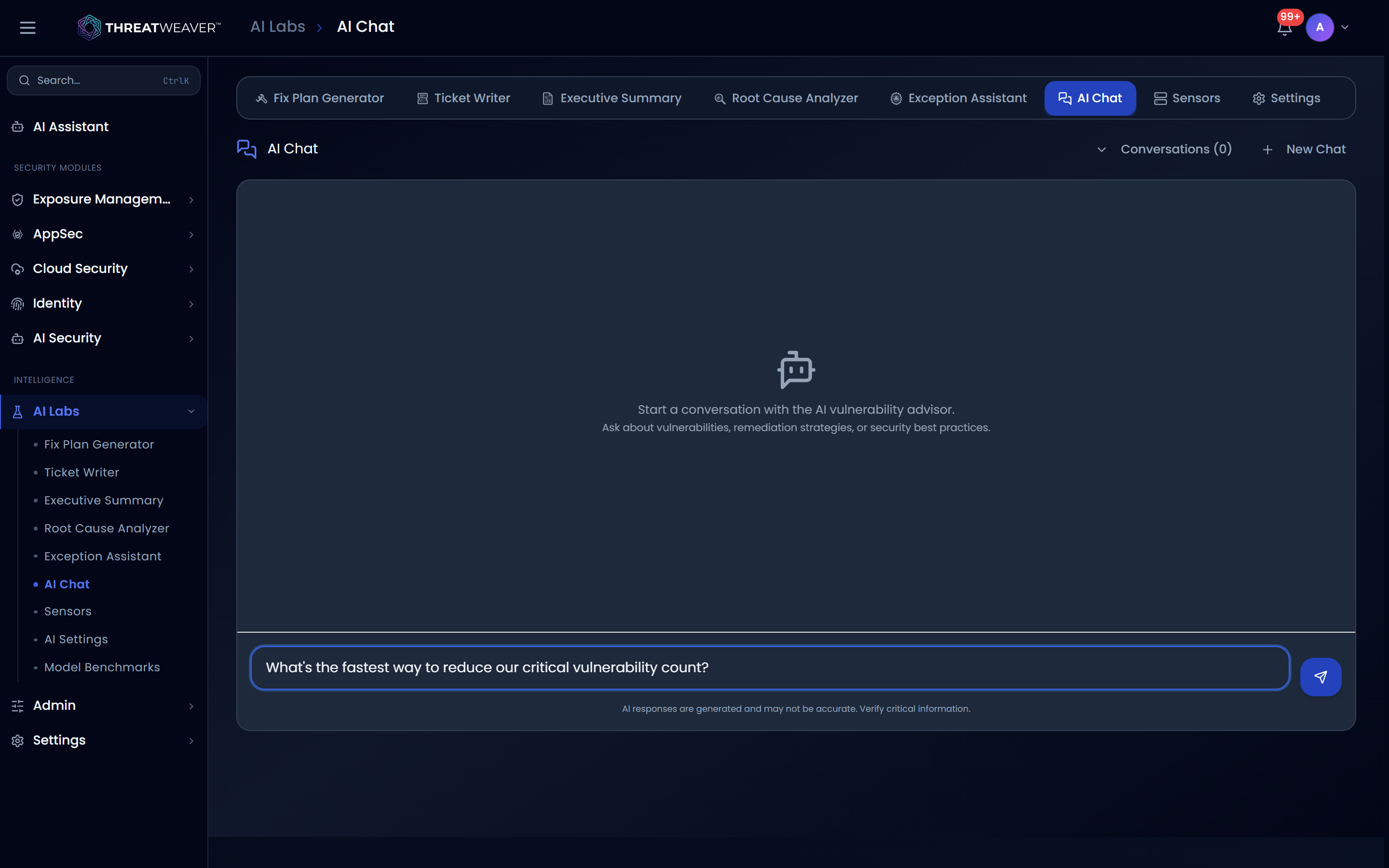
| Conversations | Shows how many past conversations you have; opens a list of them, each with its title and date, so you can reopen one. |
| New Chat | Clears the current conversation and starts a fresh one. |
| Message box | Type your question and press Enter (or click Send) to send it. Messages are limited to 10,000 characters; a counter appears once you're within 2,000 characters of the limit. |
| Send | Sends your message and shows the AI's reply in the conversation. |
AI Chat always shows a reminder near the message box that responses are AI-generated and may not be accurate. Verify anything you plan to rely on.
Administrators can turn individual tools on or off, so you may see a subset of these six. You can add your own AI provider at any time from the Settings tab. See Sensors and Settings and Admin.
Common workflows
Workflow: draft a ticket from a real vulnerability
- Open AI Labs (from the left navigation, or the AI Labs tab in Exposure Management) and choose the Ticket Writer tab.
- Keep Search Database selected and pick one or more vulnerabilities (up to ten). Set the Priority.
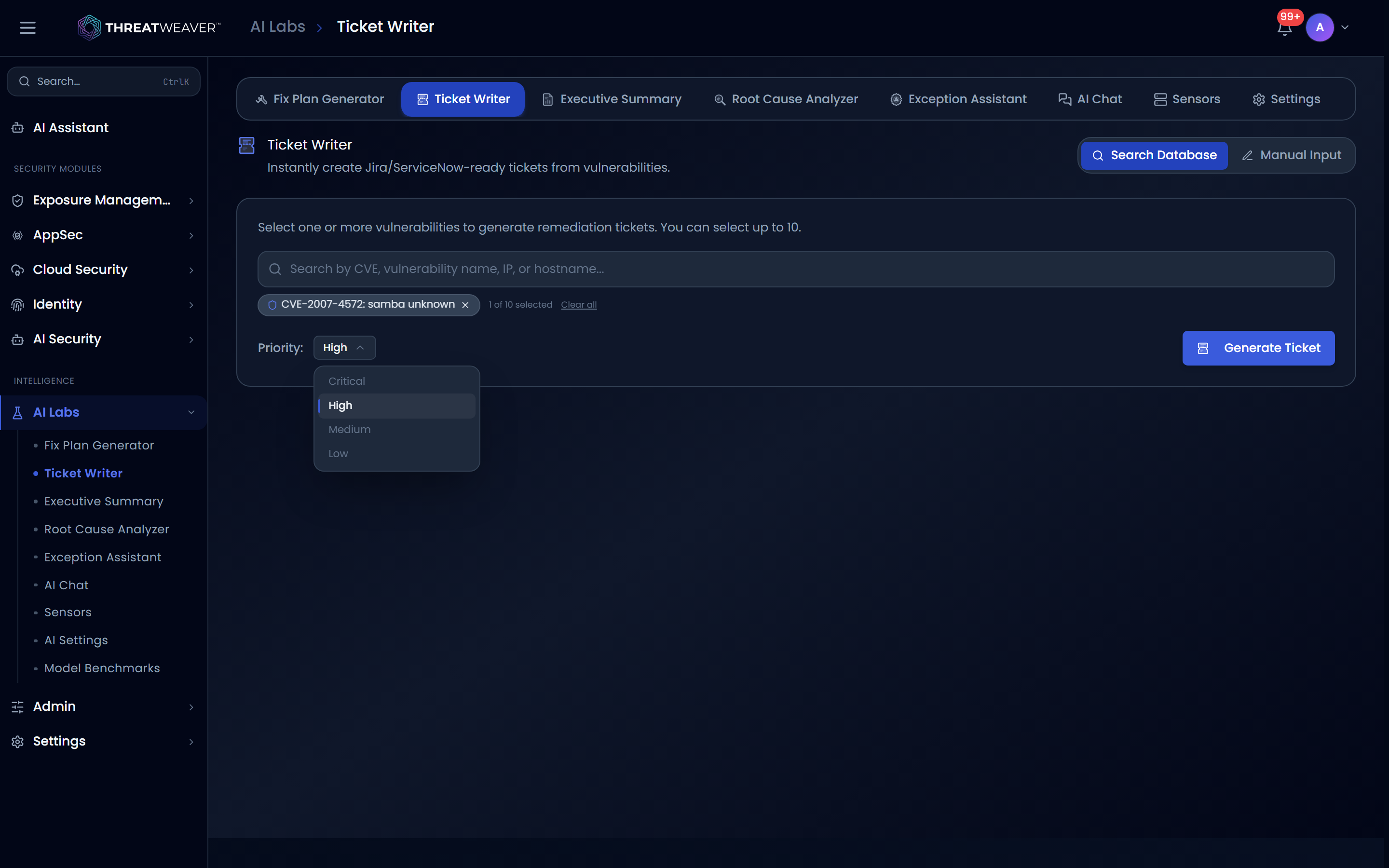
- Click Generate. Review the drafted ticket, then use Copy to paste it into your issue tracker.
Workflow: build an executive summary from real data
- Open the Executive Summary tab and click Auto-Fill to populate Context / Scope and Key Metrics with your current numbers.
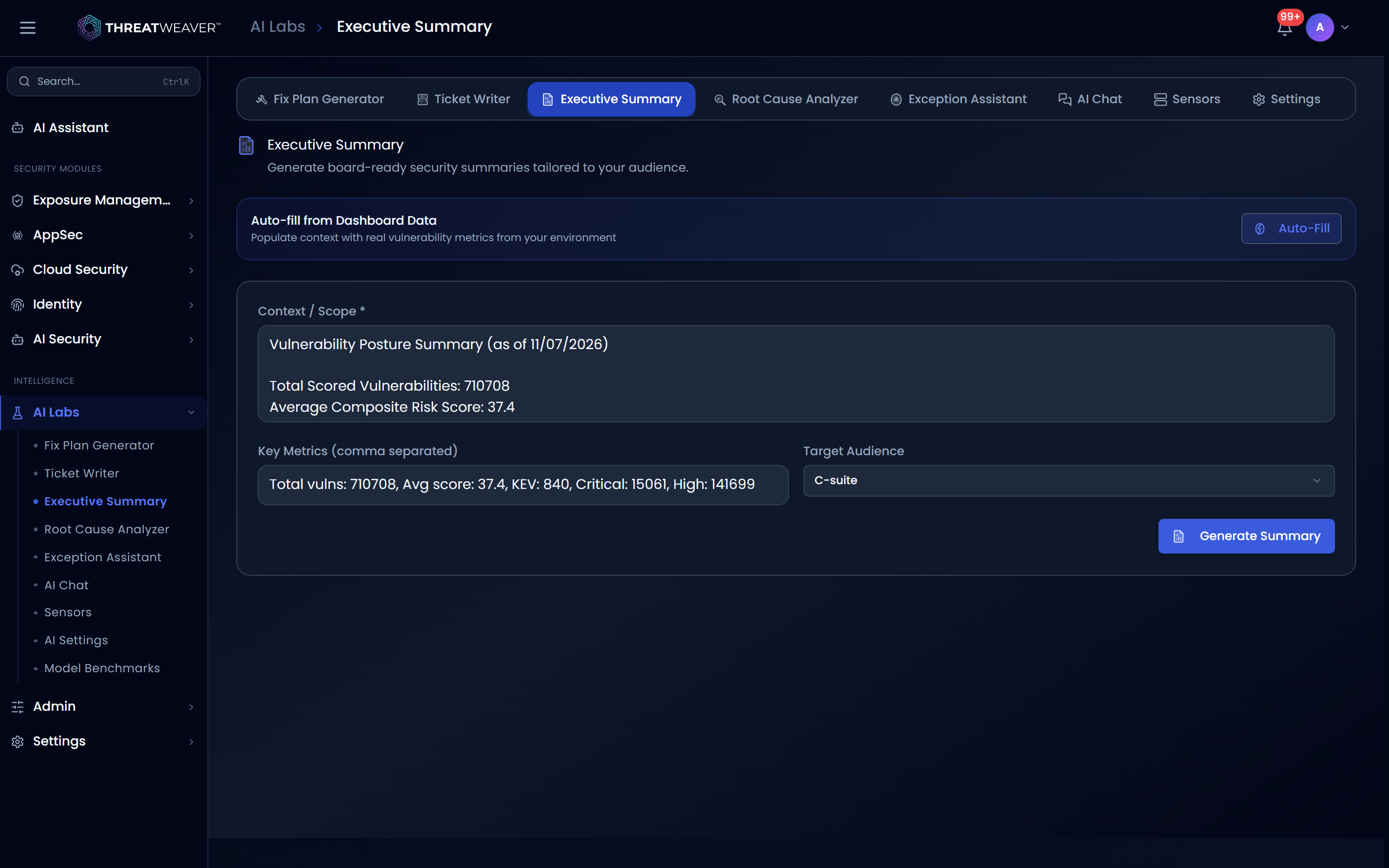
- Choose a Target Audience (for example, Board) and adjust the context if needed.
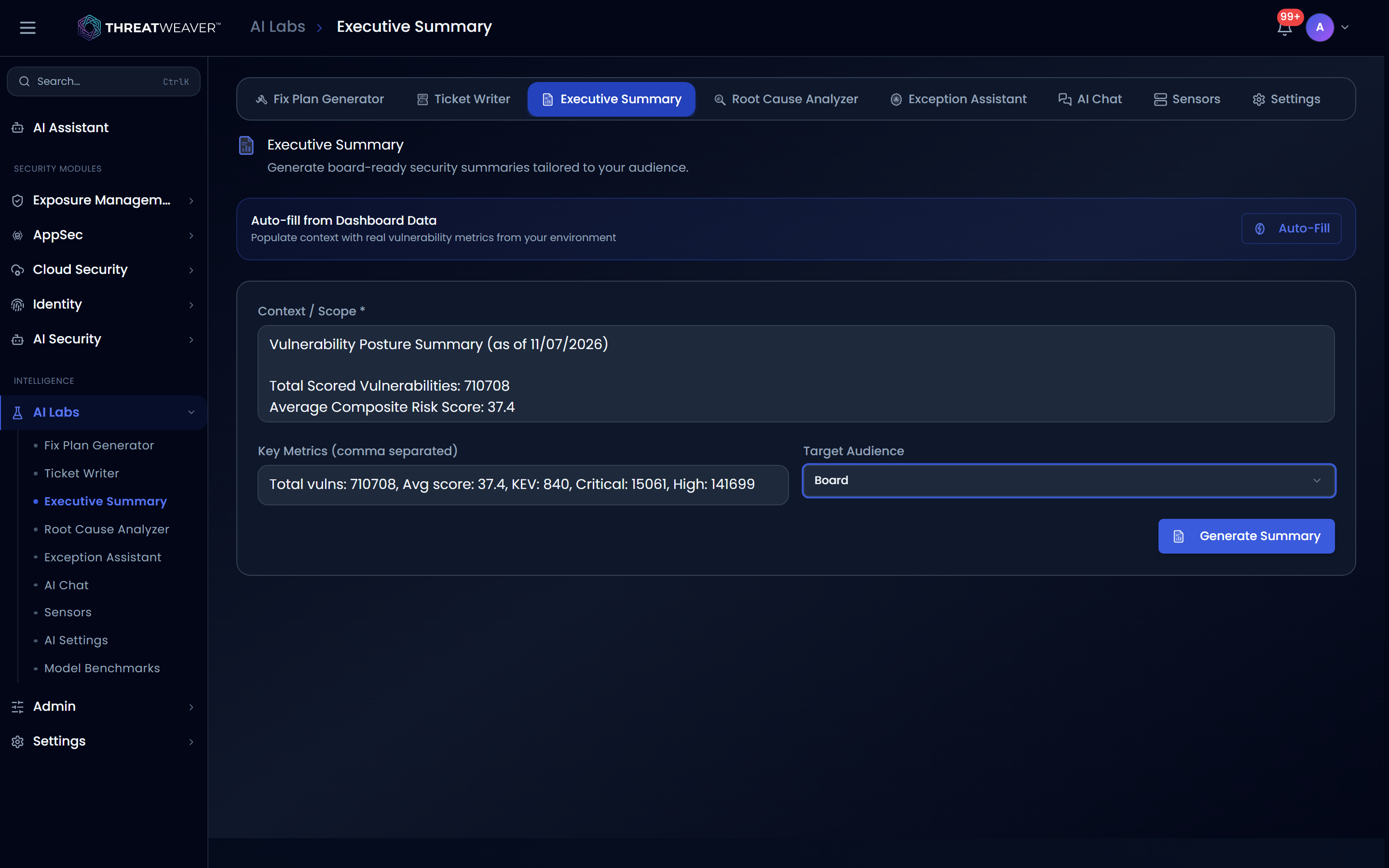
- Click Generate Summary. Review the summary, then Copy it into your report or deck.
Workflow: get a second opinion in AI Chat
- Open the AI Chat tab and type your question (for example, how to prioritize a set of similar findings).
-
Press Enter to send it. Read the reply, and ask a follow-up question in the same conversation if you need more detail.
-
Click New Chat to start a fresh conversation, or Conversations to reopen an earlier one.