AI Security
Using AI Security
AI Security is organized into four tabs: Dashboard, AI Inventory, Risks, and Governance. This page explains every screen and control in each one, and walks through the workflows you'll use most.
What it's for
- Discover AI tools in use across your environment and keep them in one inventory.
- Spot shadow AI and risks: unapproved tools, possible data leaks, and policy violations.
- Govern usage: approve or block tools and define policies such as allowlists and usage limits.
The screens in it
- Dashboard: how many AI tools were discovered, how many are shadow AI, how many are approved, and how many risks are open.
- AI Inventory: every discovered AI tool, with the ability to approve or block each one.
- Risks: shadow AI, data-leak, policy-violation, and unauthorized-model findings.
- Governance: the policies you've defined and the list of approved tools.
Every control explained
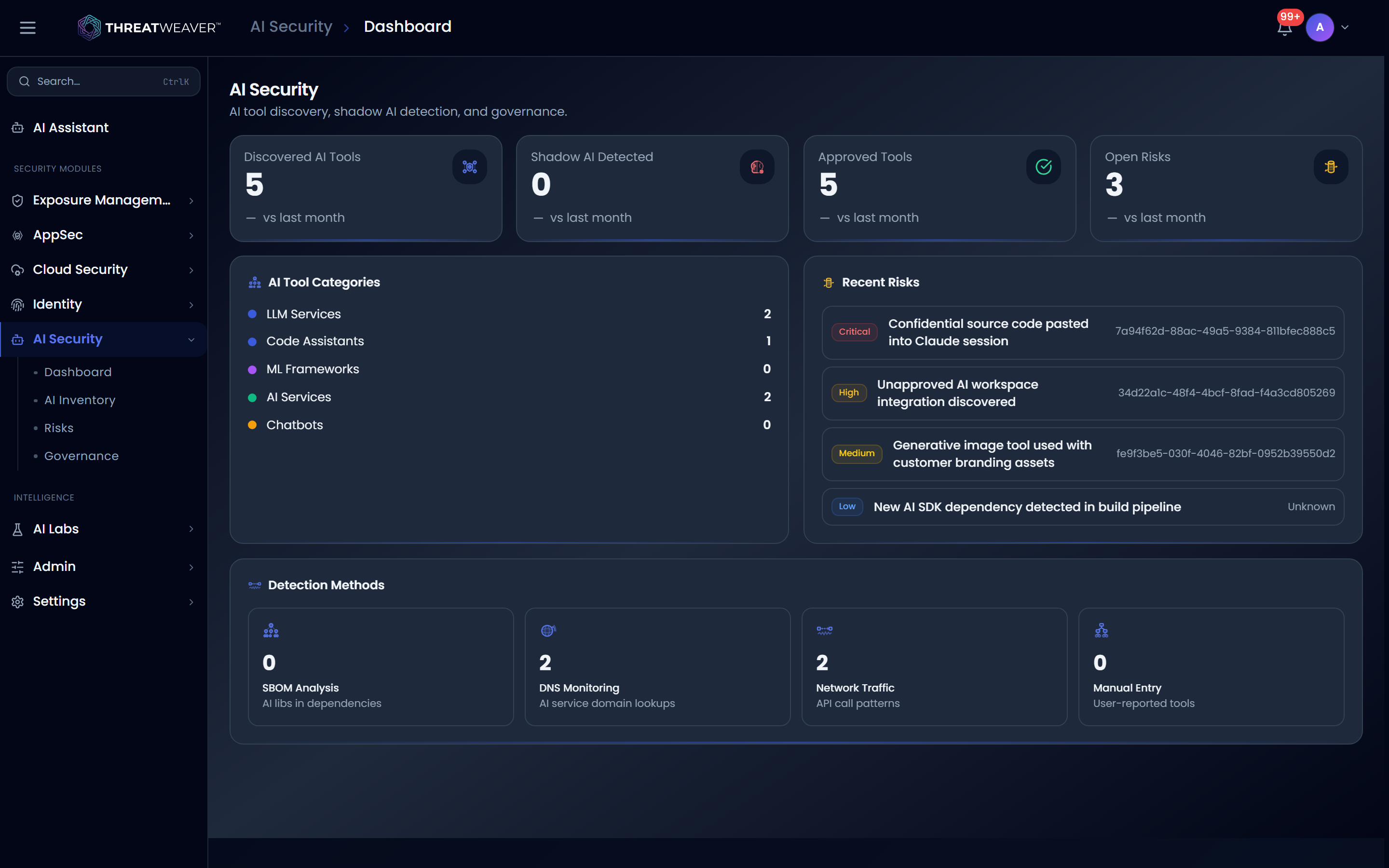
The Dashboard tab
| Control | What it shows |
|---|---|
| Discovered AI Tools | The total number of AI tools found. |
| Shadow AI Detected | Tools in use that haven't been approved. |
| Approved Tools | Tools you've explicitly approved. |
| Open Risks | AI-related risks still needing attention. |
| AI Tool Categories | A breakdown by type: LLM services, code assistants, ML frameworks, AI services, and chatbots. |
| Recent Risks | The five most recent risks detected, with severity and which tool they relate to. |
| Detection Methods | How tools are discovered: analysis of software dependencies, monitored domain lookups, network traffic patterns, and manually reported tools. |
The AI Inventory tab
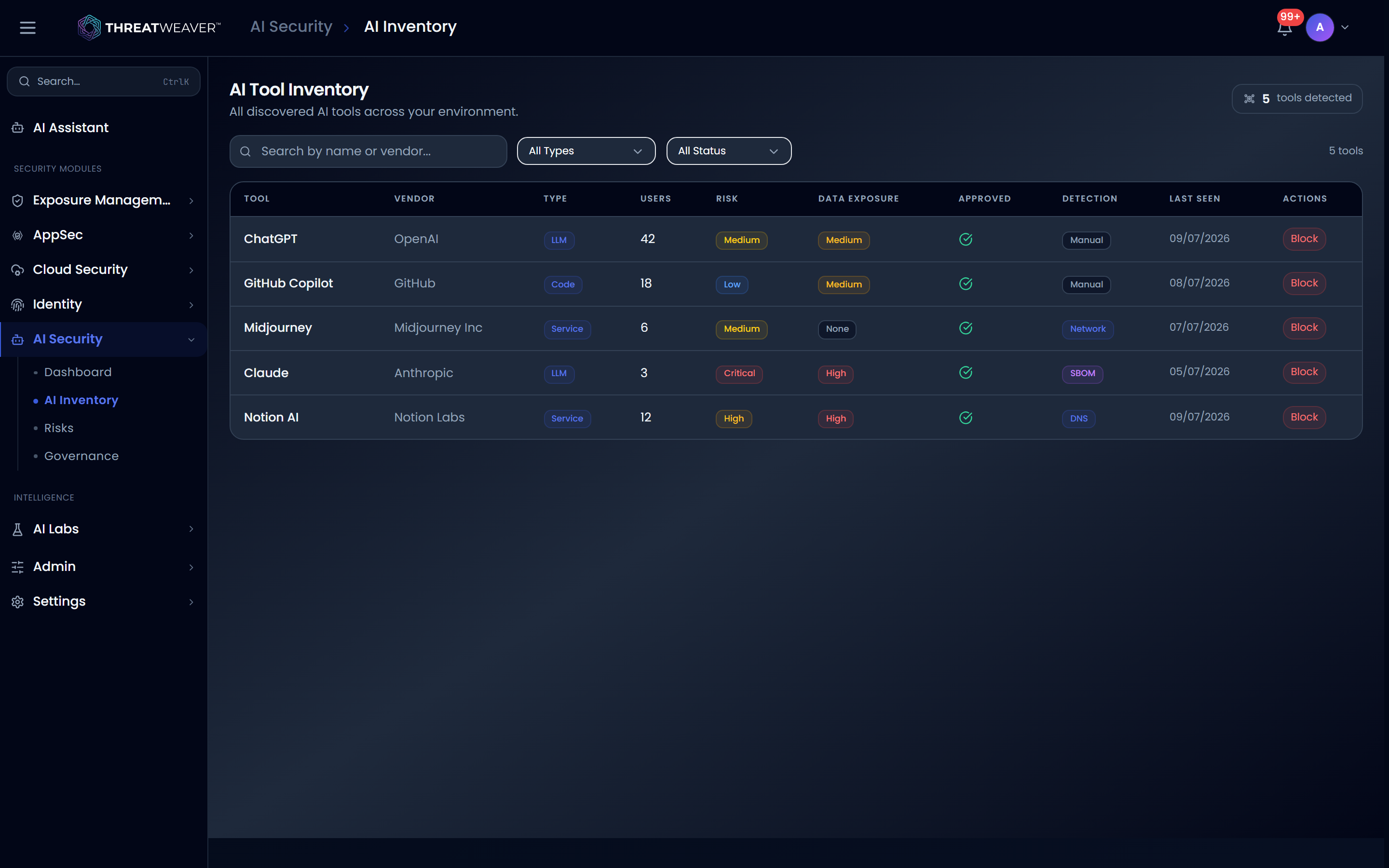
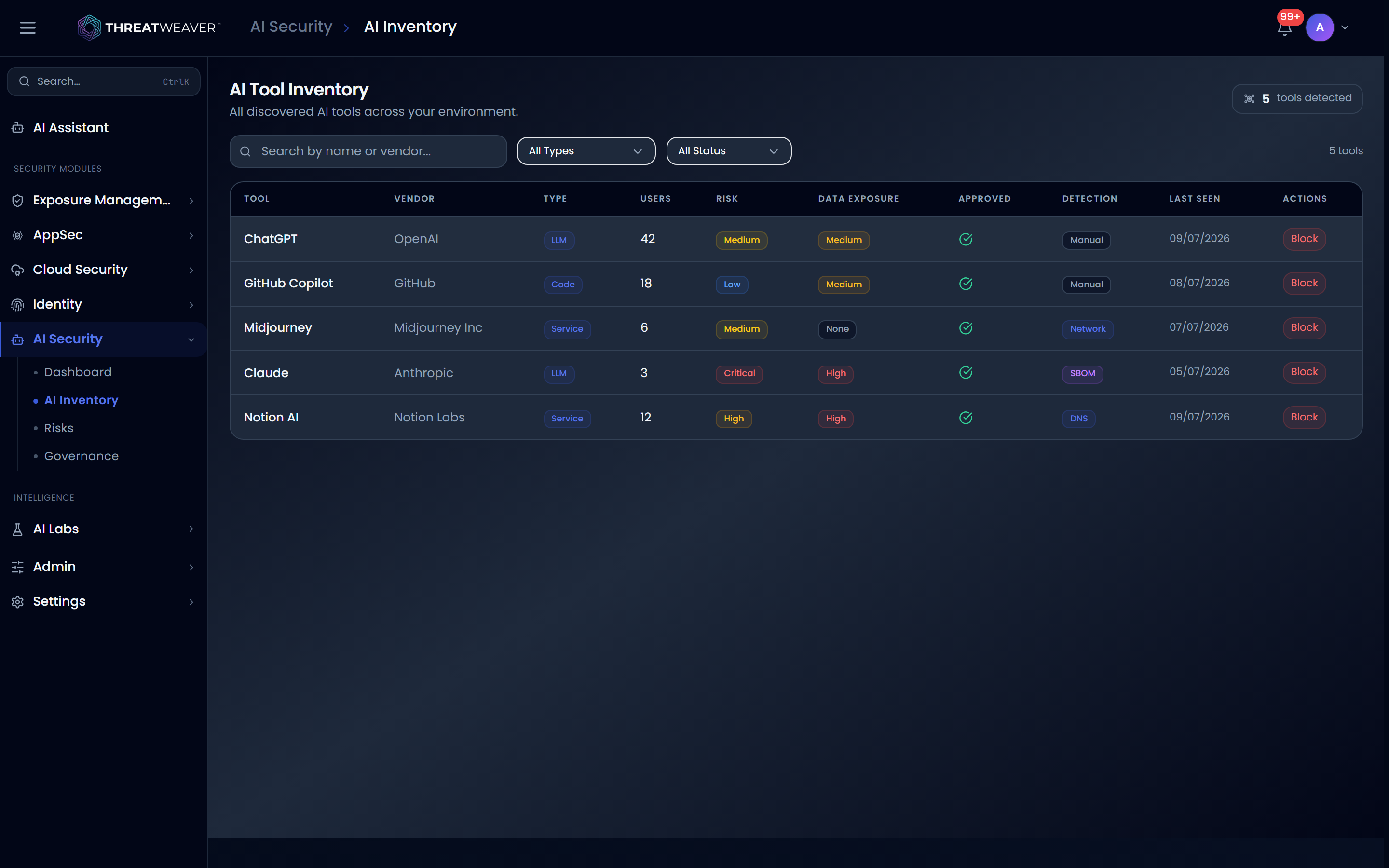
A counter in the tab header shows how many tools have been detected in total.
| Control | What it does |
|---|---|
| Search | Filters the list by tool name or vendor. |
| Type filter | Narrows to LLM, Code Assistant, ML Framework, AI Service, or Chatbot. |
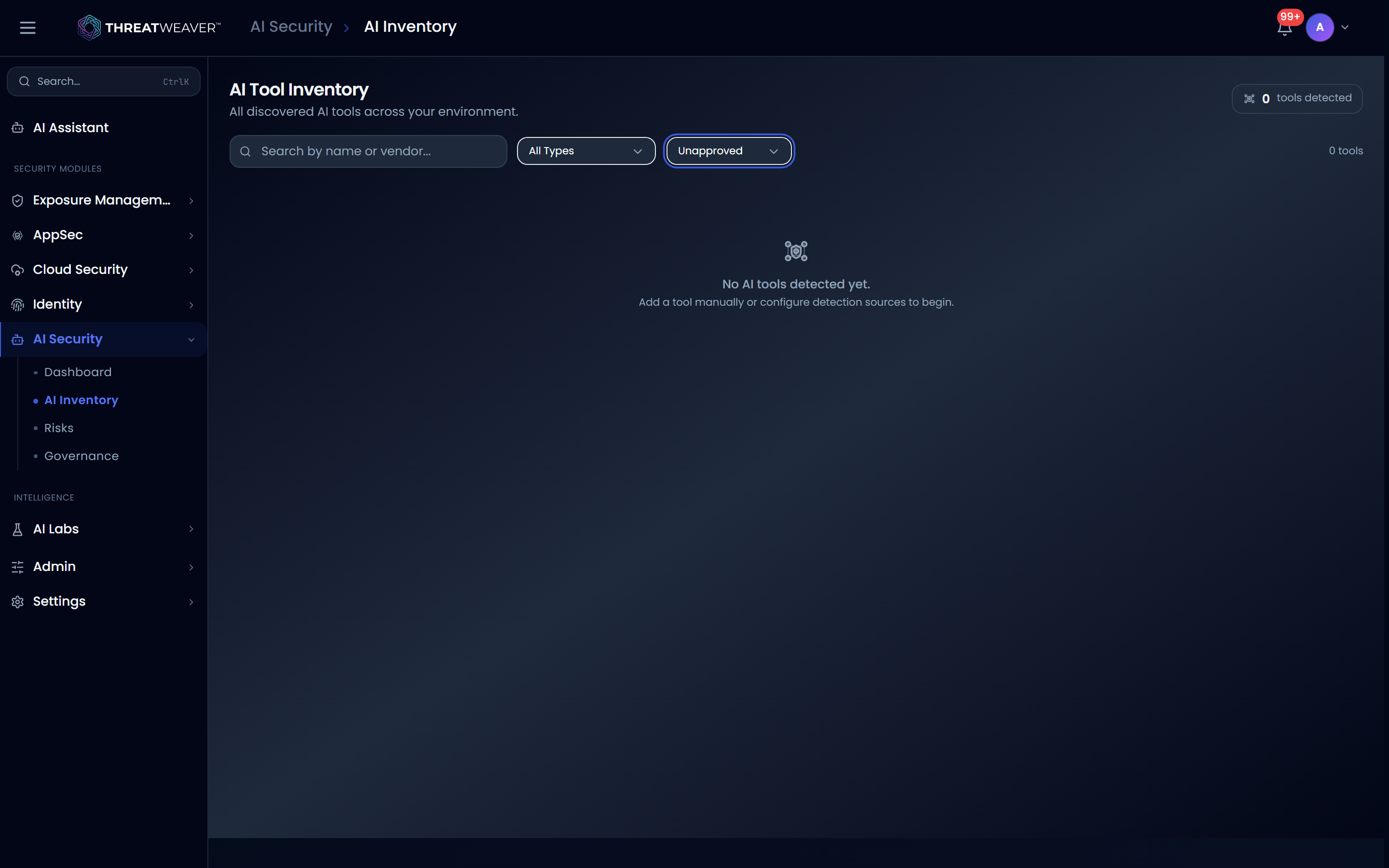
| Status filter | Narrows to Approved or Unapproved tools. |
| Approve | Marks an unapproved tool as approved. Shown on unapproved rows. |
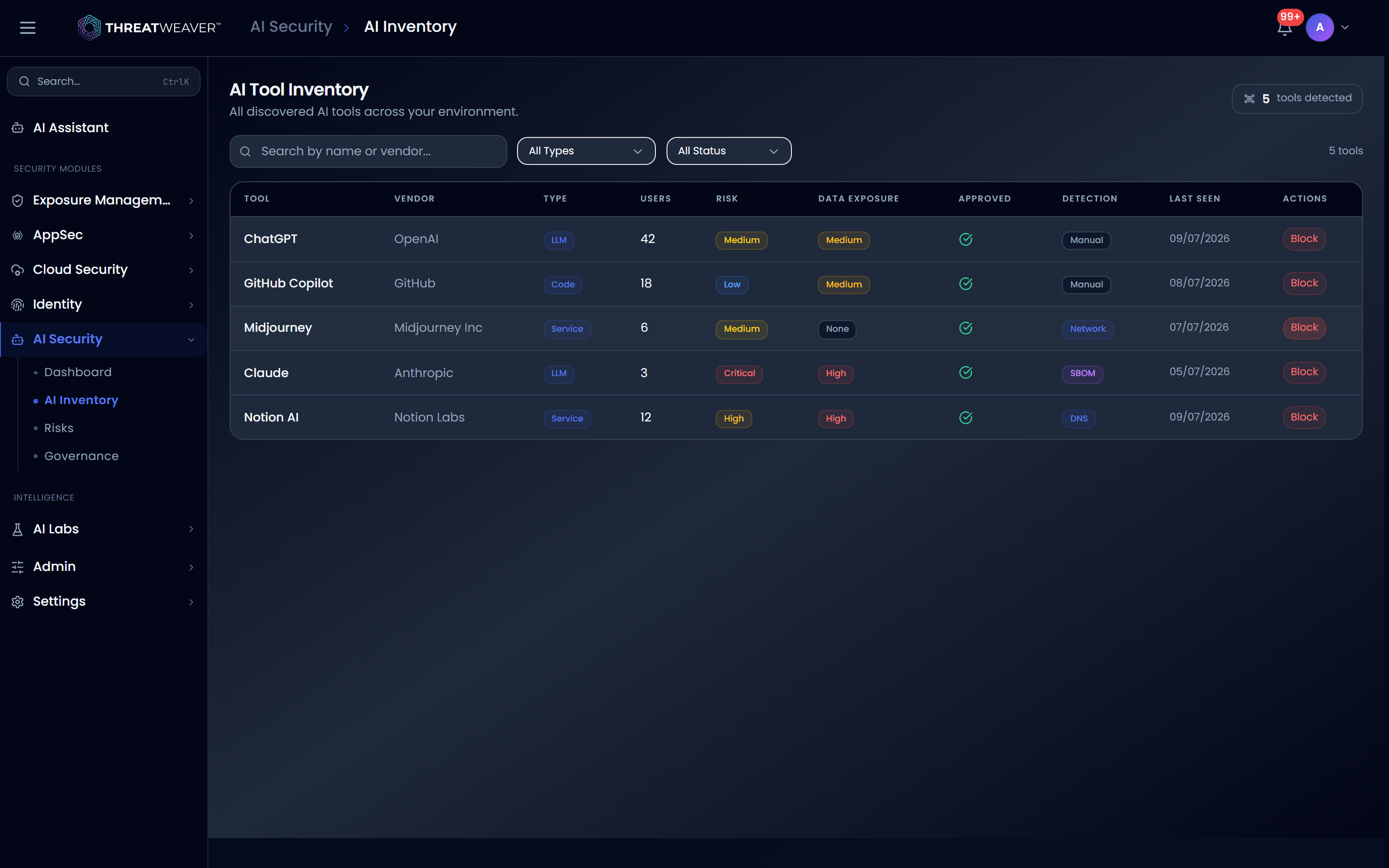
| Block | Blocks a previously approved tool. Shown on approved rows. |
Each row also shows the tool's vendor, number of users, a risk level, its data-exposure level, how it was detected, when it was last seen, and whether it's currently Approved (a checkmark or an X).
The Risks tab
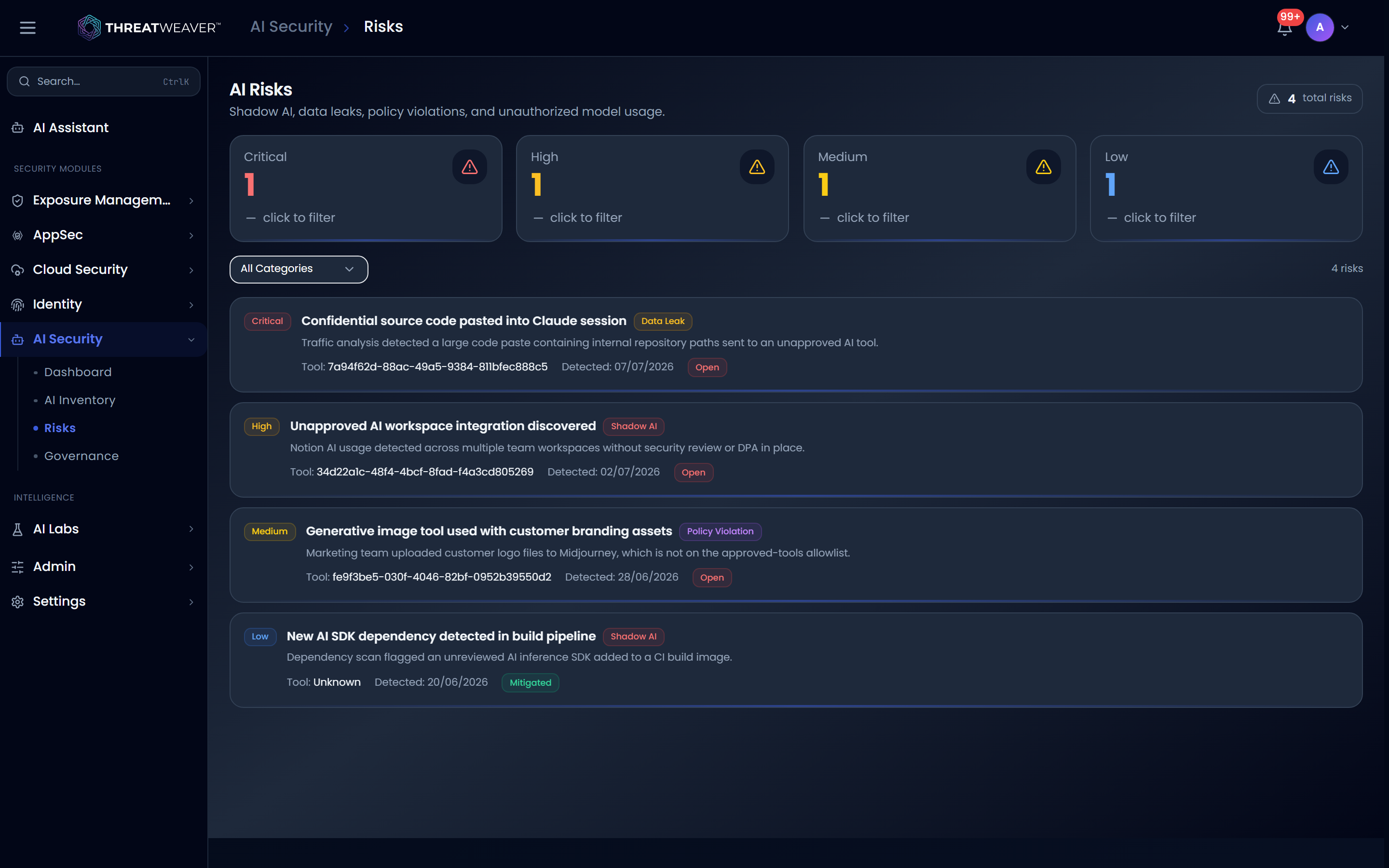
A counter in the tab header shows the total number of risks on record.
| Control | What it does |
|---|---|
| Severity tiles | Critical / High / Medium / Low counts. Click a tile to filter the list to that severity; click it again to clear the filter. |
| Category filter | Narrows to Shadow AI, Data Leak, Policy Violation, or Unauthorized Model. |
Each risk card shows a title, its category, a description, the tool it relates to, when it was detected, and its status: Open, Mitigated, or Accepted.
The Governance tab
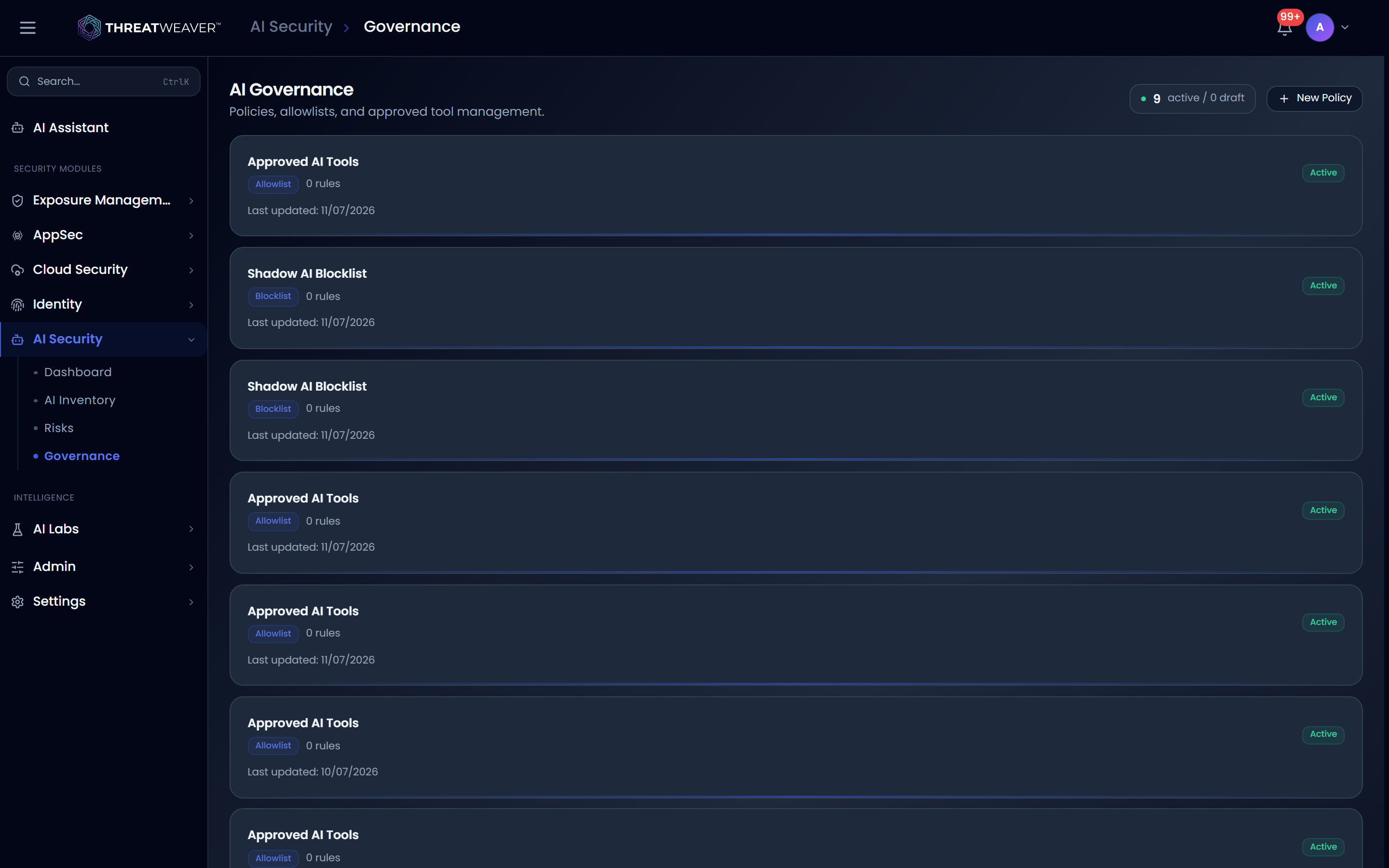
A counter in the tab header shows how many policies are active and how many are still drafts.
| Control | What it does |
|---|---|
| New Policy | Opens a form to create a governance policy. |
| Policy cards | Each shows the policy name, its type, how many rules it has, and whether it's Active, Draft, or Disabled. |
| Approved AI Tools | The list of tools you've approved from the AI Inventory tab, with each tool's vendor and type. |
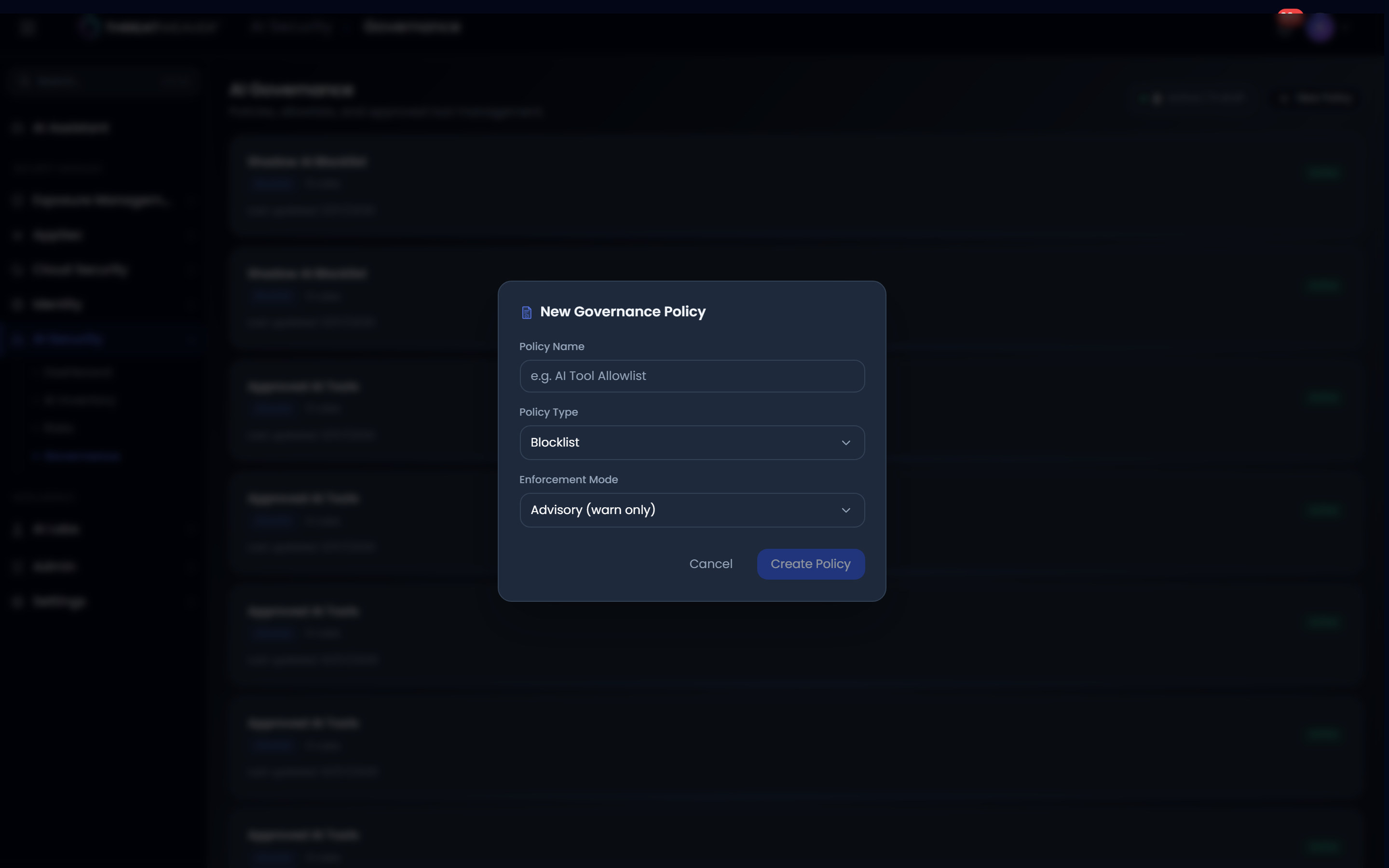
The New Policy form asks for:
| Field | What it's for |
|---|---|
| Policy Name | A name you choose for the policy. |
| Policy Type | Allowlist, Blocklist, Usage Limit, Data Classification, or Approval Workflow. |
| Enforcement Mode | Advisory (warns but doesn't block) or Blocking (denies the action). |
| Cancel | Closes the form without creating a policy. |
Common workflows
Workflow: review and approve a discovered tool
- Open the AI Inventory tab. Use the Status filter to show Unapproved tools.
- Review each tool's risk and data-exposure levels, and how many people use it.
- Click Approve to allow it, or Block to stop its use. Approved tools then appear on the Governance tab's Approved AI Tools list.
Workflow: create a governance policy
- Open the Governance tab and click New Policy.
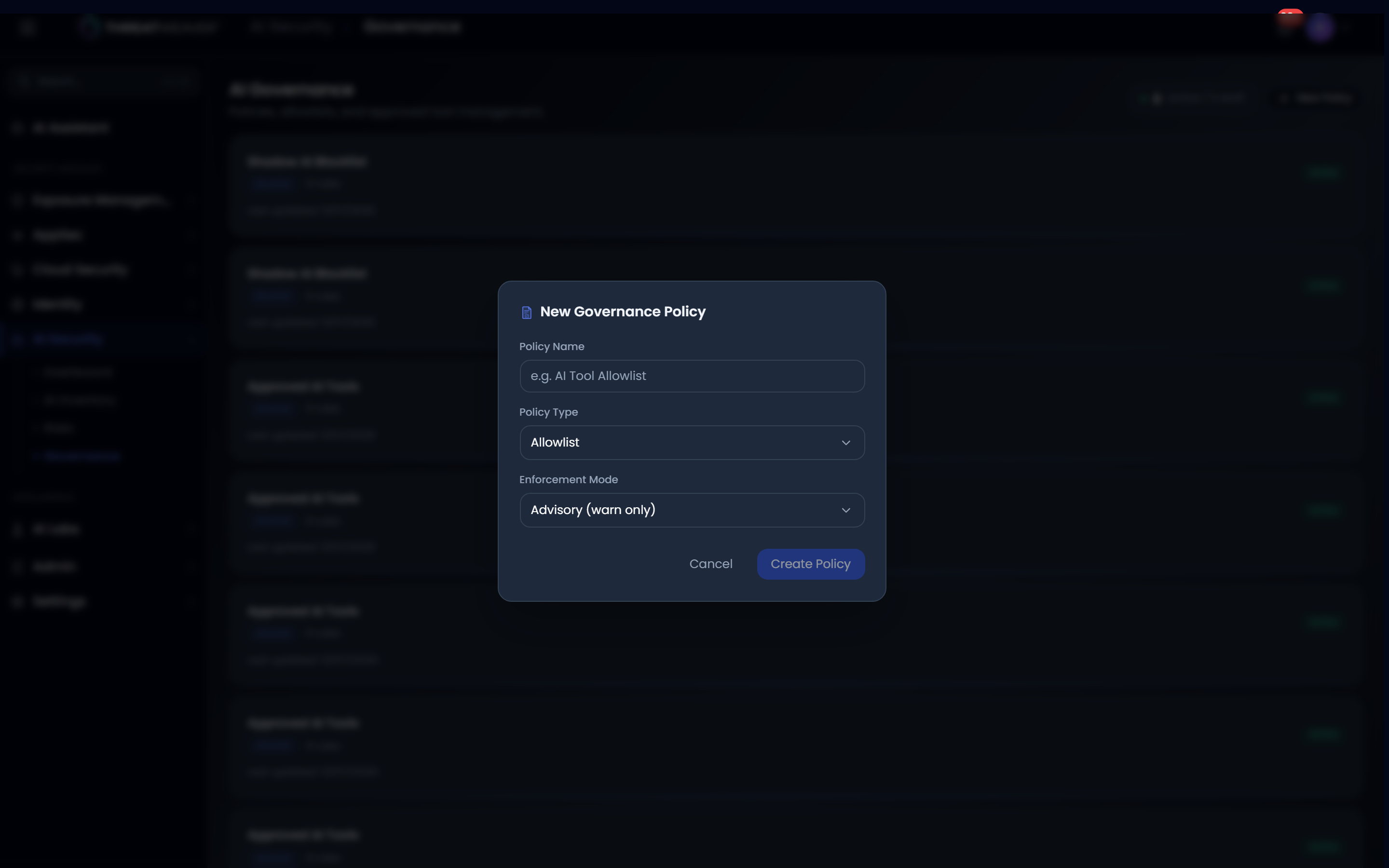
- Enter a Policy Name, choose a Policy Type (for example Allowlist), and pick an Enforcement Mode: Advisory to warn, or Blocking to deny.
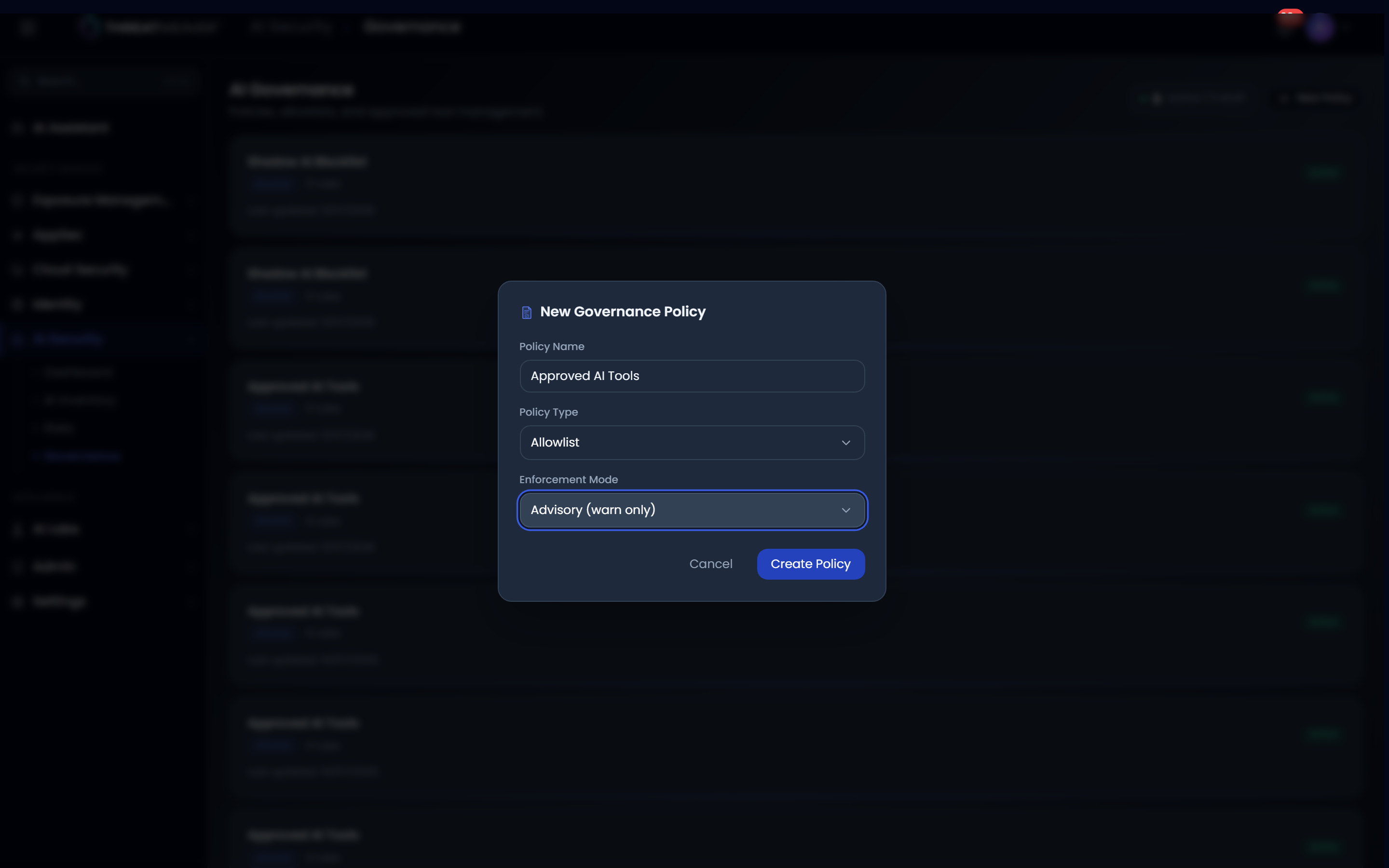
- Click Create Policy. It appears as a card on the Governance tab.
Workflow: investigate an open risk
- Open the Risks tab and click a severity tile (for example Critical) to focus on the risks that matter most.
- Optionally narrow further with the Category filter.
- Read each risk card's description and which tool it relates to, then decide whether to approve, block, or otherwise address that tool from the AI Inventory tab.